> For the complete documentation index, see [llms.txt](https://shoppad.gitbook.io/blogstudio/llms.txt). Markdown versions of documentation pages are available by appending `.md` to page URLs; this page is available as [Markdown](https://shoppad.gitbook.io/blogstudio/customize-the-app/set-button-links.md).
# Set button links
Before we start setting button links in Blog Studio, there's a few formatting requirements to take note of.
When setting links to other web pages, always include the **https\://** portion of the URL.


When setting links to an email prompt, format the link by prefixing your email address with **mailto:**, as seen in the image below.

### Getting Started...
Follow the steps below on how to set links on Blog Studio buttons.
1. Starting from the Blog Studio editor, click the **Content Blocks icon**.
2. Navigate into the ***Basic*** section by clicking the arrow icon, and select the **Buttons** menu.
3. Locate the button you want to use and drag it to the desired location on the blog.
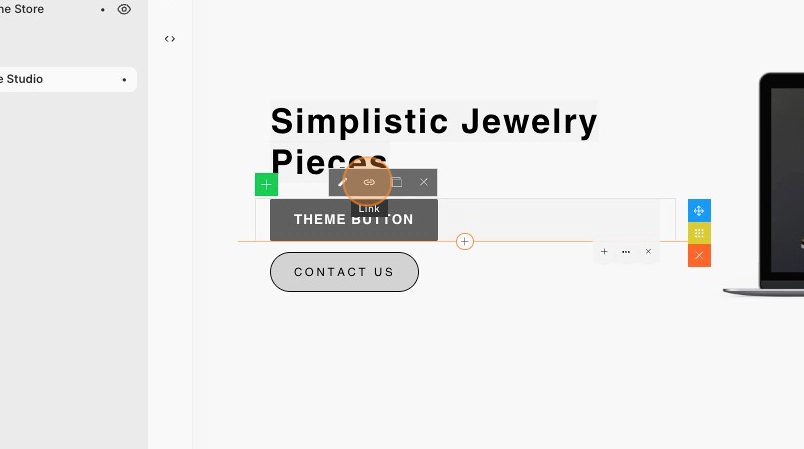
4\. Click the new button and select the **Link icon**.
3\. Replace the top field with your URL.
* The **Open New Window** checkbox will control whether the visitor is taken to a brand new window in their browser when they click on the button.
* The **Text** field will control what text appears on your button.
* The **Title** field will be the text that appears if a visitor hovers over the button on your store.
4\. Save your changes.