# Add a currency selector to your store
Follow the steps below to add a currency selector for your store.
A basic understanding of HTML and CSS code may be required to format the currency selector to your liking. If you can't seem to figure it out, we offer an Expert Install Service where we take care of the installation for you. Check out [this article](https://docs.theshoppad.com/article/233-get-started-with-the-expert-install-service-coin) for more information.
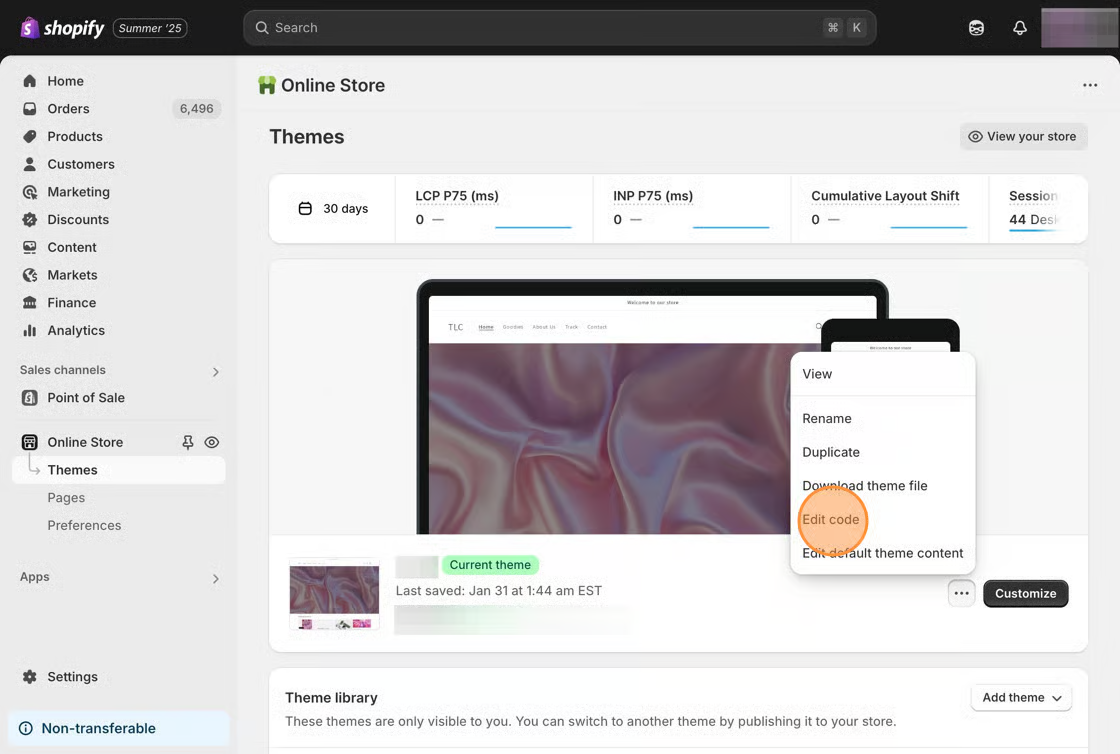
1\. From your Shopify admin, click **Online Store**, then click **Themes.**
2\. Find the theme you want to edit, click the **...** button, then click **Edit code.**
3\. Click on the ***theme.liquid*** file that's located in the **layout** folder.
4\. Copy the following code snippet.
```html
```
5\. Locate your theme's header, and paste the code where you think it fits best. **Since every theme is different, you may have to experiment to find the right place.**
6\. Optional: [Update currency selector formatting](https://github.com/shoppad/docs-coin/blob/master/get-started-with-coin/get-started-with-coin/update-currency-selector-formatting.md)
{% hint style="info" %}
**Note**: This setup will only work on the Dawn theme.
{% endhint %}
## Follow this example using the Dawn theme
### Add CSS styles
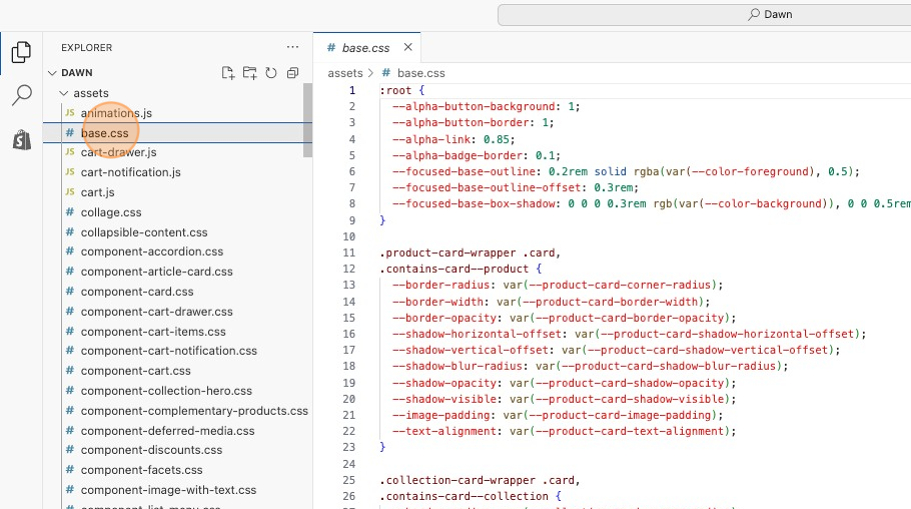
1\. Under the Assets folder, click on the **base.css** file.
2\. Apply the following CSS to the bottom of the file.
```css
/* Coin by ShopPad */
#coin-container {
display: inline-block;
vertical-align: middle;
}
#coin-container select {
width: auto;
margin: 0;
border: 0;
color: rgba(var(--color-foreground),.75) !important;
padding-right: 18px !important;
background-image: url('data:image/svg+xml;base64,PHN2ZyB4bWxucz0iaHR0cDovL3d3dy53My5vcmcvMjAwMC9zdmciIHZlcnNpb249IjEuMSIgeD0iMCIgeT0iMCIgdmlld0JveD0iLTE3LjUgLTEuMyA1MC4xIDI3LjkiIHhtbDpzcGFjZT0icHJlc2VydmUiPjxwb2x5bGluZSBwb2ludHM9IiAxNi4xIDguNSA3LjYgMTcgLTAuOSA4LjUgIiBzdHlsZT0iZmlsbDpub25lO3N0cm9rZS1saW5lY2FwOnJvdW5kO3N0cm9rZS1saW5lam9pbjpyb3VuZDtzdHJva2Utd2lkdGg6MjtzdHJva2U6IzEyMTIxMkJGIi8+PC9zdmc+');
background-repeat: no-repeat;
background-position: right;
background-size: 21px 21px;
background-color: transparent;
-webkit-appearance: none;
-moz-appearance: none;
-ms-appearance: none;
-o-appearance: none;
appearance: none;
}
#coin-container select::-ms-expand {
display: none;
}
#coin-container select:focus,
#coin-container select:hover {
outline:0 !important;
border: 0 !important;
-webkit-box-shadow: none;
box-shadow: none;
}
@media only screen and (min-width: 750px) {
.mobile-coin #coin-container {
display: none;
}
#coin-container {
margin-top: 10px;
margin-right: 5px;
}
}
@media only screen and (max-width: 749px) {
.desktop-coin #coin-container {
display: none;
}
#coin-container select {
padding: 1.1rem 2rem 1.1rem 3.2rem !important;
font-size: 1.8rem;
background-size: 24px 24px;
background-image: url('data:image/svg+xml;base64,PHN2ZyB4bWxucz0iaHR0cDovL3d3dy53My5vcmcvMjAwMC9zdmciIHZlcnNpb249IjEuMSIgeD0iMCIgeT0iMCIgdmlld0JveD0iLTE3LjUgLTEuMyA1MC4xIDI3LjkiIHhtbDpzcGFjZT0icHJlc2VydmUiPjxwb2x5bGluZSBwb2ludHM9IiAxNi4xIDguNSA3LjYgMTcgLTAuOSA4LjUgIiBzdHlsZT0iZmlsbDpub25lO3N0cm9rZS1saW5lY2FwOnJvdW5kO3N0cm9rZS1saW5lam9pbjpyb3VuZDtzdHJva2Utd2lkdGg6MjtzdHJva2U6IzAwMCIvPjwvc3ZnPg==');
}
}
```
3\. Save changes.
### Add currency selector to theme
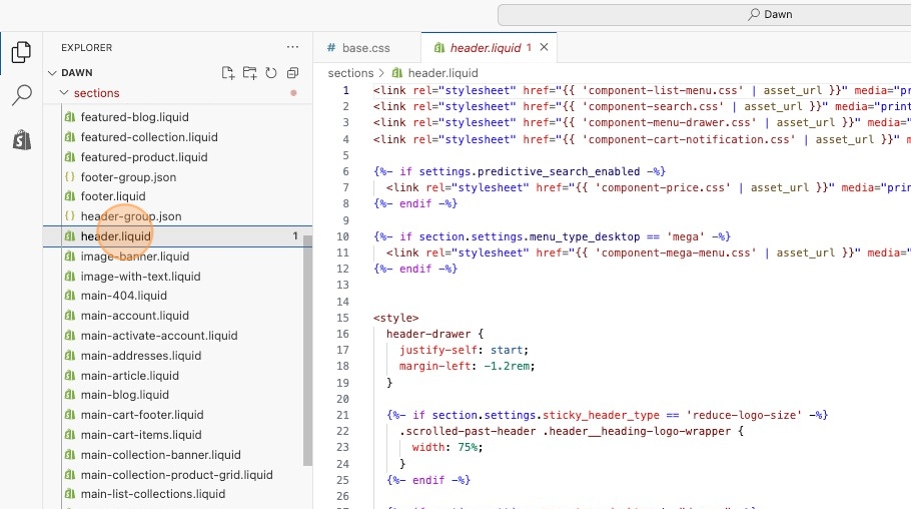
1\. In the theme code, click on the **header.liquid** file under the Sections folder.
2\. Using the keyboard shortcuts (ctrl F or ⌘ F), search for the cart icon by looking up the following line of text.
```html
3\. Copy the snippet of code.
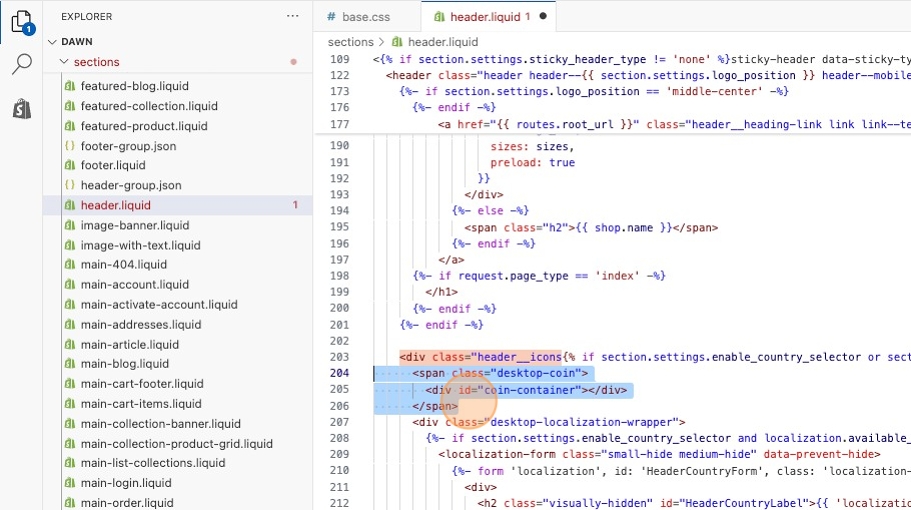
```html
```
4\. Insert the currency selector snippet right after the line of code you found on **Step 2**. This will place the currency selector to the left of the search icon.
5\. Save your changes.
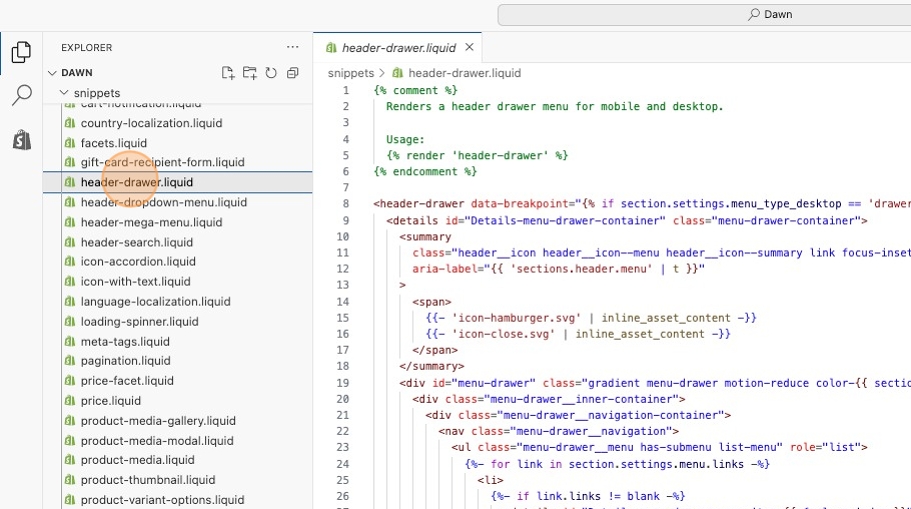
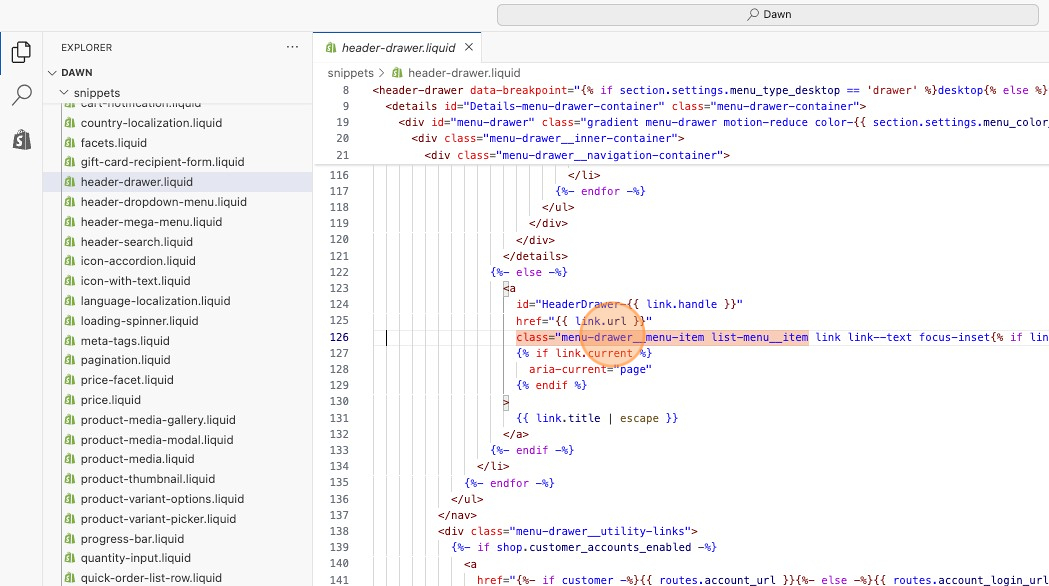
6\. Next, locate the **header-drawer.liquid** file under the Snippets folder.
7\. Use the snippet to search for where the mobile navigation starts.
```html
class="menu-drawer__menu-item list-menu__item
```
8\. There will be two instances of this code. Locate the second instance (around line 126).
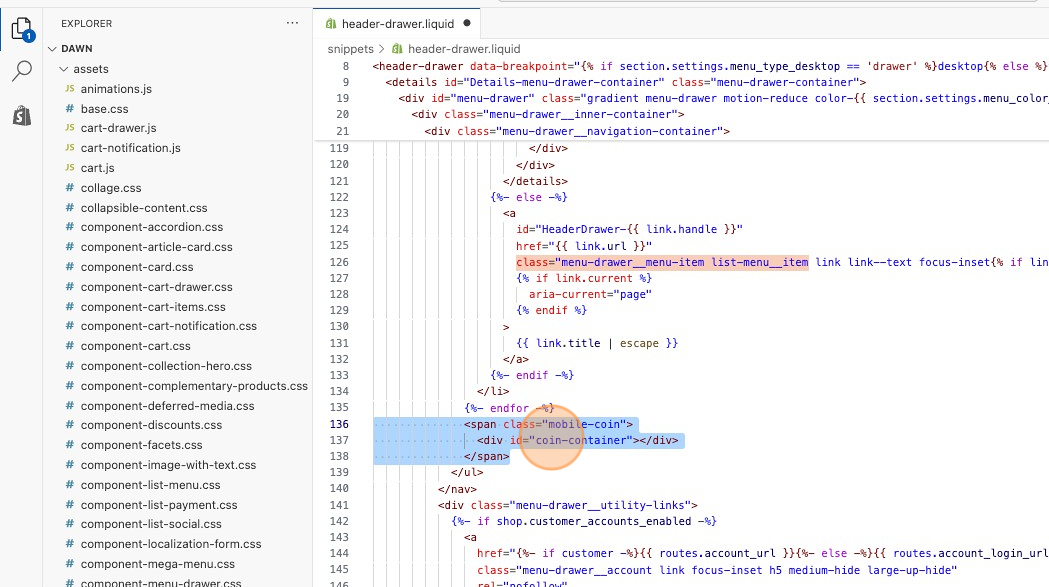
About ten lines of code below this, you will see ***{%- endfor -%}.***
9\. Insert the currency selector snippet below that line. This will place the currency selector in the mobile navigation menu.
```html
```
10\. Save changes.
.png?alt=media)