> For the complete documentation index, see [llms.txt](https://shoppad.gitbook.io/infinite-options/llms.txt). Markdown versions of documentation pages are available by appending `.md` to page URLs; this page is available as [Markdown](https://shoppad.gitbook.io/infinite-options/popular-setups/add-on-gift-wrapping-option.md).
# Add on Gift Wrapping Option
### Adding a Gift Wrapping Option to Your Products
This page walks through how to offer gift wrapping as a paid add-on using Native Bundling in Infinite Options. When a shopper selects the gift wrap option, the cost is added to their order and the gift wrapping product is linked automatically.
If you haven't set up Native Bundling yet, start here first: [Native Bundling](https://infinite-options.docs.theshoppad.com/increase-the-cost-of-an-option/native-bundling)
### What we're building
A shopper lands on your product page and sees an option to add gift wrapping for an extra charge. If they select it, the gift wrap cost is added to their order. If they skip it, nothing changes. Simple and clean.
### Step 1: Create your Gift Wrapping product in Shopify
Go to Products in your Shopify admin and create a new product. Call it something clear like "Gift Wrapping" and set the price to whatever you charge for the service, for example, $5.
A few things to set up on this product:
* **Visibility:** You can keep this product unpublished on your Online Store. It doesn't need to be visible to shoppers on its own, it just needs to exist in Shopify for Native Bundling to work.
* **Image:** Add an image if you want it to display as a swatch on the product page. A square image works best and the file size should be under 1MB.
* **Inventory:** Inventory tracking is optional for a service like gift wrapping, but turn it off if you don't want it counted.
### Step 2: Create an Option Set in Infinite Options
Open your Infinite Options dashboard and create a new Option Set. Assign it to the product or products where you want to offer gift wrapping.
Add one option field and set it up like this:
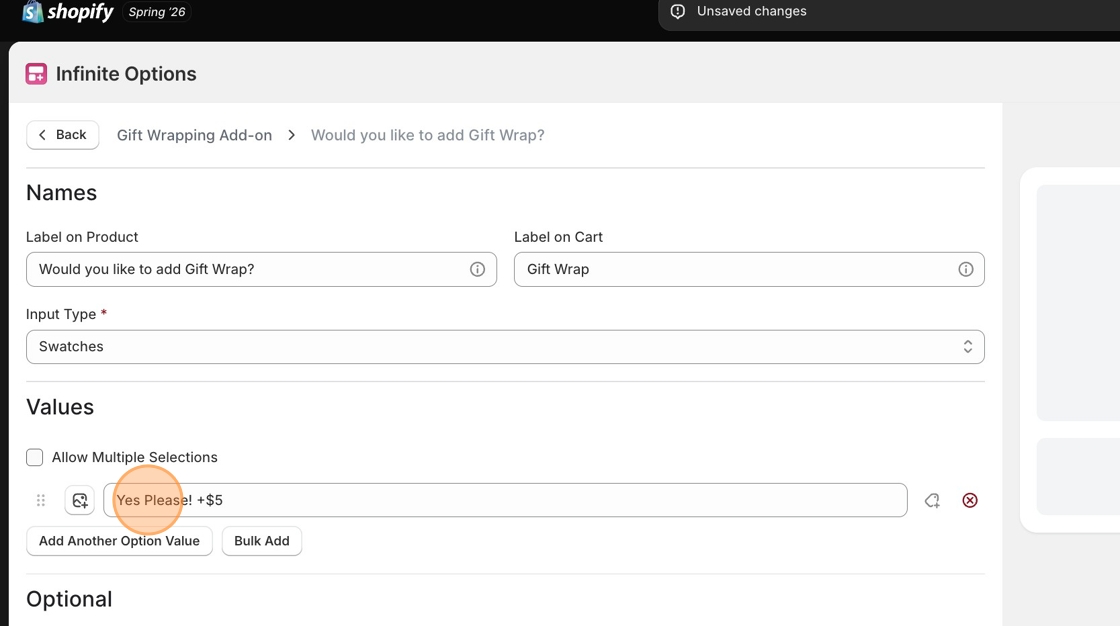
* **Label on Product:** Give it a clear label like "Would you like to add Gift Wrap?" so you can identify it easily.
* **Input Type:** Swatches work well here because you can display a gift wrap image for shoppers to click. You can also use Checkbox or Radio Buttons if you prefer.
* **Option Value:** Write a clear label that lets shoppers know they're choosing to add the selection and what it costs, for example, "Yes Please! +$5."
### Step 3: Upload a swatch image (optional)
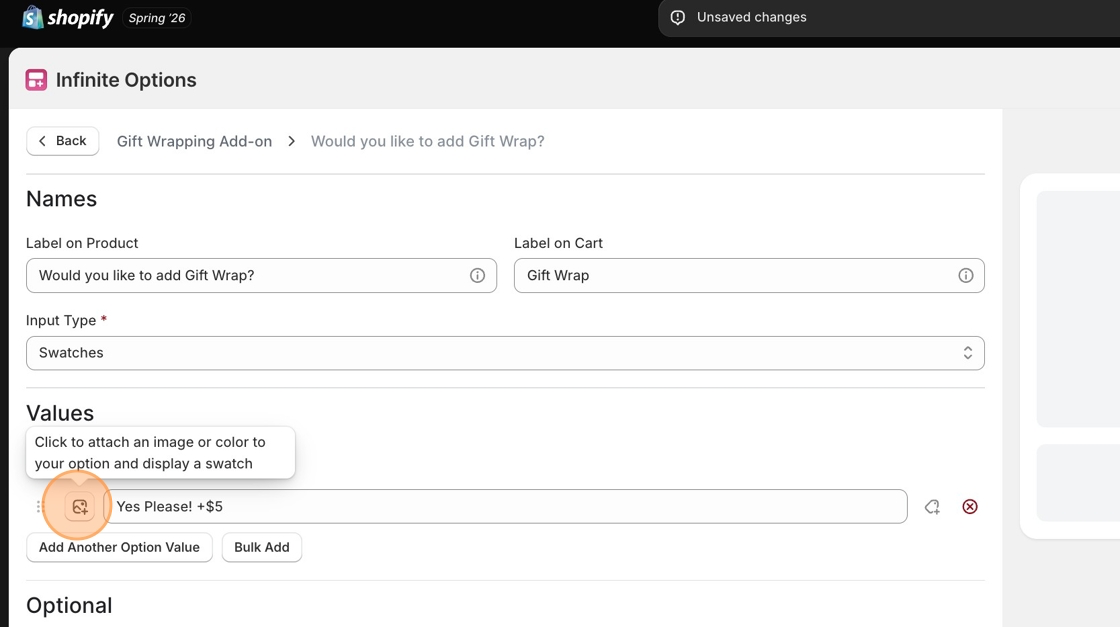
If you chose Swatches as your input type, you can add an image to make the option more visual.
Click the Add Image icon to the left of the option value. Select Image Upload, then choose your file.
Keep the image square and under 1MB for best results.
### Step 4: Link the option value to the Gift Wrapping product
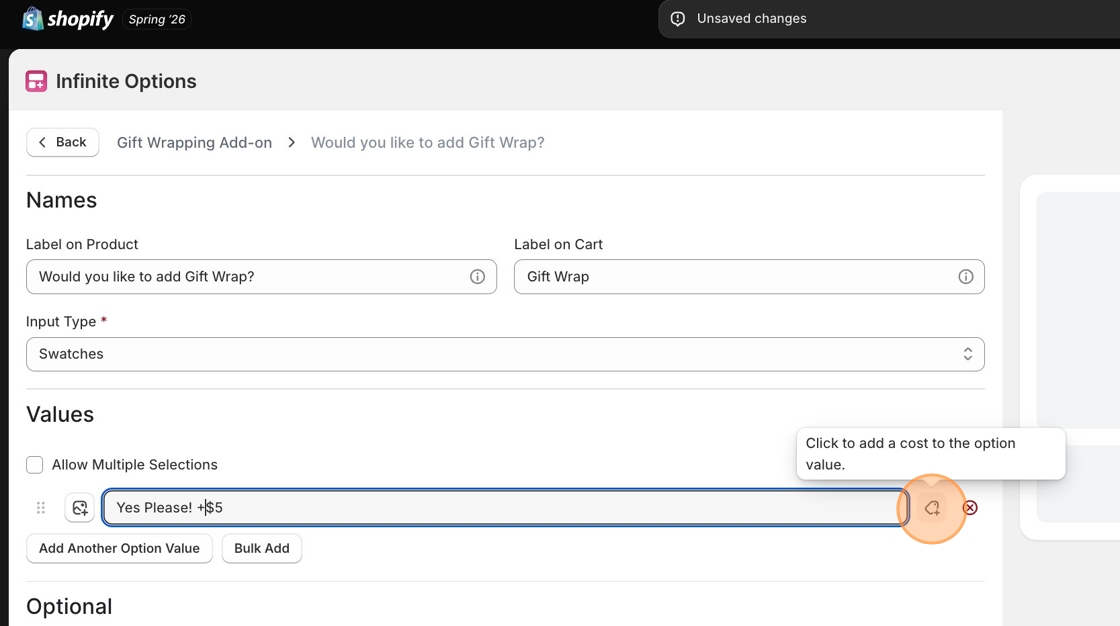
Click the price tag icon next to the option value. This is where you connect the option to the Gift Wrapping product you created in Shopify.
Search for your Gift Wrapping product, select it, and click Add. Then click Done.
This tells Infinite Options: when a shopper selects this option, add the Gift Wrapping product to their order at the price you set.
### Step 5: Set Allow Multiple Selections
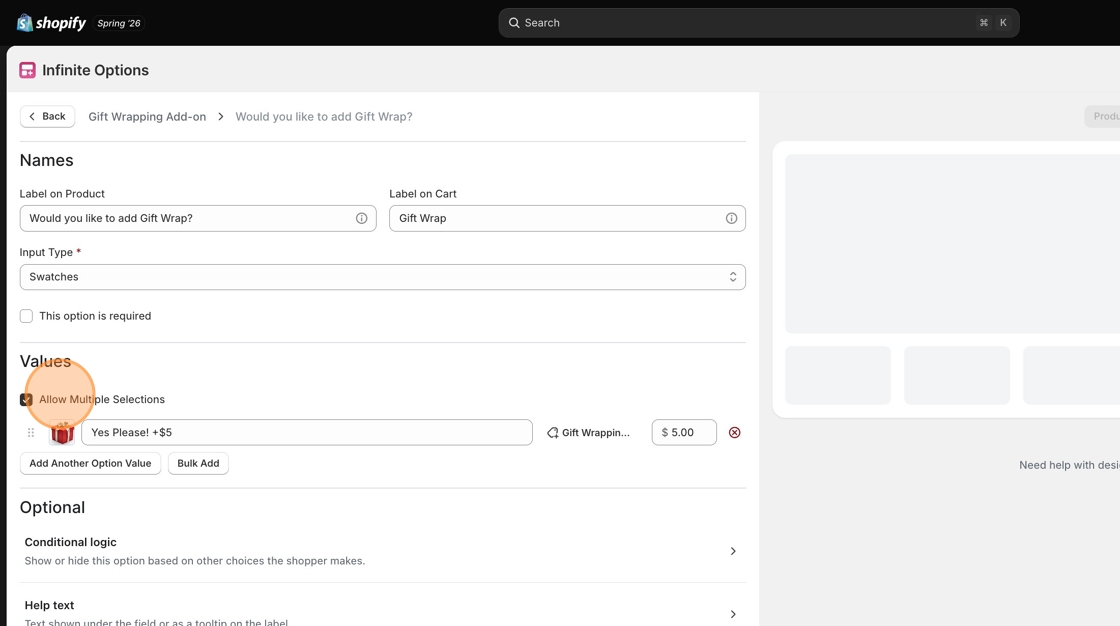
At the top of the field, find the Allow Multiple Selections checkbox and check the box.
This means the gift wrap option won't be automatically selected when a shopper lands on the product page. They have to actively choose it, which is the right experience for an optional add-on.
### Step 6: Save and test
Click Save Changes at the top of the Option Sets page.
Go to your product page and try it out:
* Select the gift wrap option and add the product to your cart
* Confirm the gift wrap cost has been added to the cart total
* Confirm the gift wrap option appears as a separate line item grouped with the main product
* Deselect the option and confirm the cost is removed
If everything looks right, you're done. If something isn't working the way you expected, check the troubleshooting section below.
### Want to customize how your swatch looks?
You can adjust the size, shape, and style of your swatch using CSS. See the full guide here: [Customize swatches using CSS](https://shoppad.gitbook.io/infinite-options/inputs-and-field-settings/create-swatches/customize-swatches-using-css)
***
### Something not working?
**The gift wrap option isn't showing up on my product page.** Check that the Option Set is assigned to the correct product. If you're using a tag to assign it, make sure the tag on the product in Shopify matches the tag in the Option Set exactly.
**The gift wrap option is being selected automatically when the page loads.** Go back into Show Advanced Options on the option field and confirm Allow Multiple Selections is set to Yes.
**The option is there but the image isn't showing.** Check that the image is square and under 1MB. If it's too large or the wrong shape it may not display correctly.
If you've checked all of these and something still isn't working, reach out to support and we'll walk you through it together.