# Add a ShopPad team member to your store
Before we can start setting up your app, we'll need access to your Shopify admin dashboard.
Follow the instructions below to invite our team to your store.
1\. Log into your Shopify admin dashboard. (your-store.myshopify.com/admin)
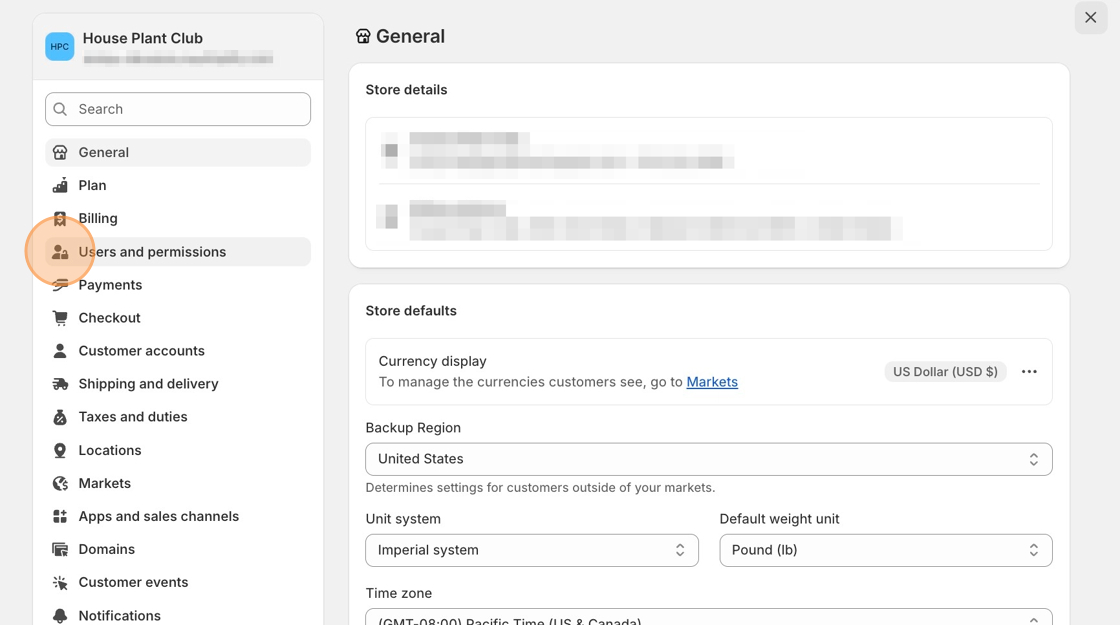
2\. Click on the **Settings** button and choose **Users and permissions**.
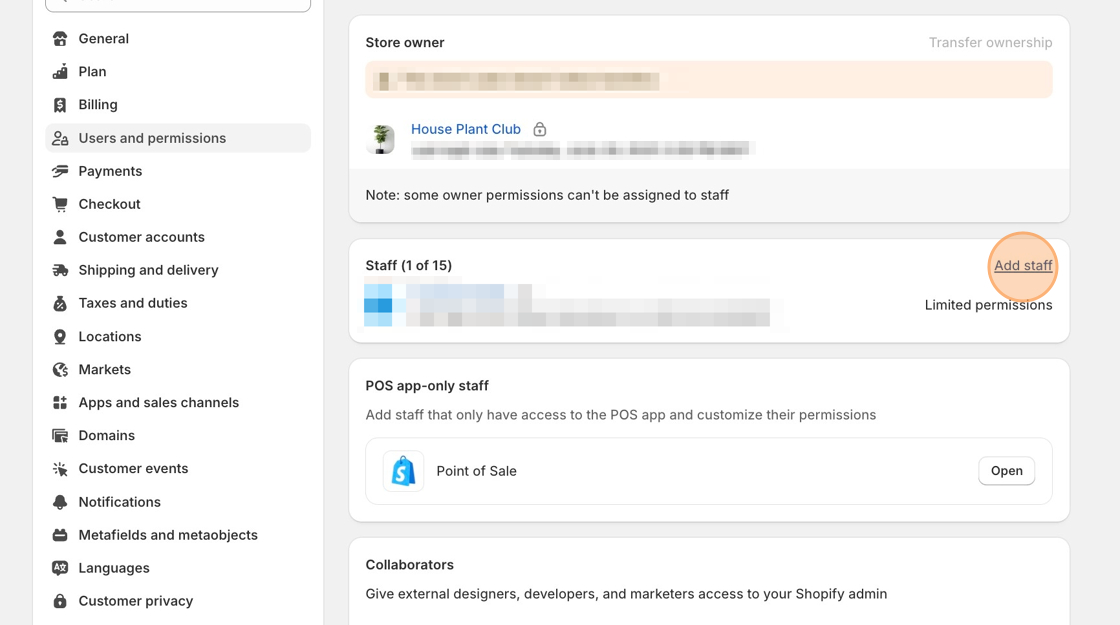
4\. Locate the **Staff accounts** section, then click **Add staff**.
5\. You may enter anything in the first name and last name fields. Use our customer support email, ****, as the email address for the new staff account.
6\. If all permissions are not given, please provide our team with the following access:
* General
* Orders
* Products
* Apps and channels
* Online Store
* Theme --> **Edit theme code**
* Blog post and pages (if using Blog Studio/Page Studio)
* Navigation
* Administration
* Manage settings
7\. Click the **Send invite** button.
A ShopPad team member will contact you once the setup has been completed. Feel free to remove our access to your store once we've completed assisting you.