> For the complete documentation index, see [llms.txt](https://shoppad.gitbook.io/infinite-options/llms.txt). Markdown versions of documentation pages are available by appending `.md` to page URLs; this page is available as [Markdown](https://shoppad.gitbook.io/infinite-options/welcome/install-infinite-options-on-a-specific-theme/install-infinite-options-on-studio-theme.md).
# Studio Theme
Turning on the [Infinite Options app embed](https://shoppad.gitbook.io/infinite-options/welcome/how-to-install#enable-infinite-options-by-turning-on-the-app-embed) is the only thing you need to do to enable Infinite Options on a 2.0 theme. Once it's toggled on, your options automatically display above the Add to Cart button on your product pages, no other setup required.
The app embed places your options in the default position, above the Add to Cart button.
Follow the steps below **only if** you want your options to appear at an exact spot instead. This involves adding the **Infinite Options Fields** block to your product template manually.
{% hint style="warning" %}
If you are comfortable with your options automatically appearing above the Add to Cart button on product pages, you **do not** need to follow this manual repositioning guide. You only need to ensure that you have [turned on the app embed](https://shoppad.gitbook.io/infinite-options/welcome/how-to-install#enable-infinite-options-by-turning-on-the-app-embed).
{% endhint %}
Follow the step-by-step instructions on how to manually reposition Infinite Options for your Studio theme.
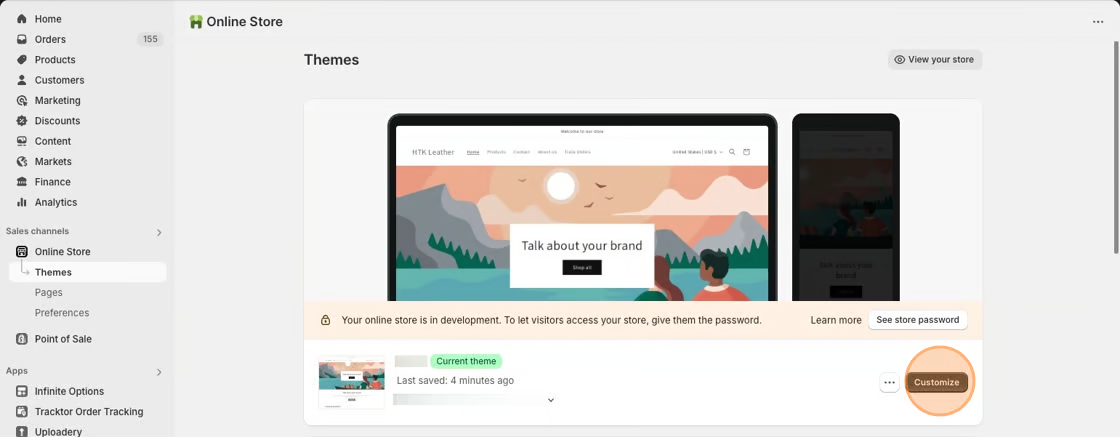
1\. Starting from your Shopify dashboard, click on **Online Store**, and then click on Themes.
2\. Click the **Customize** button on the **Studio** theme.
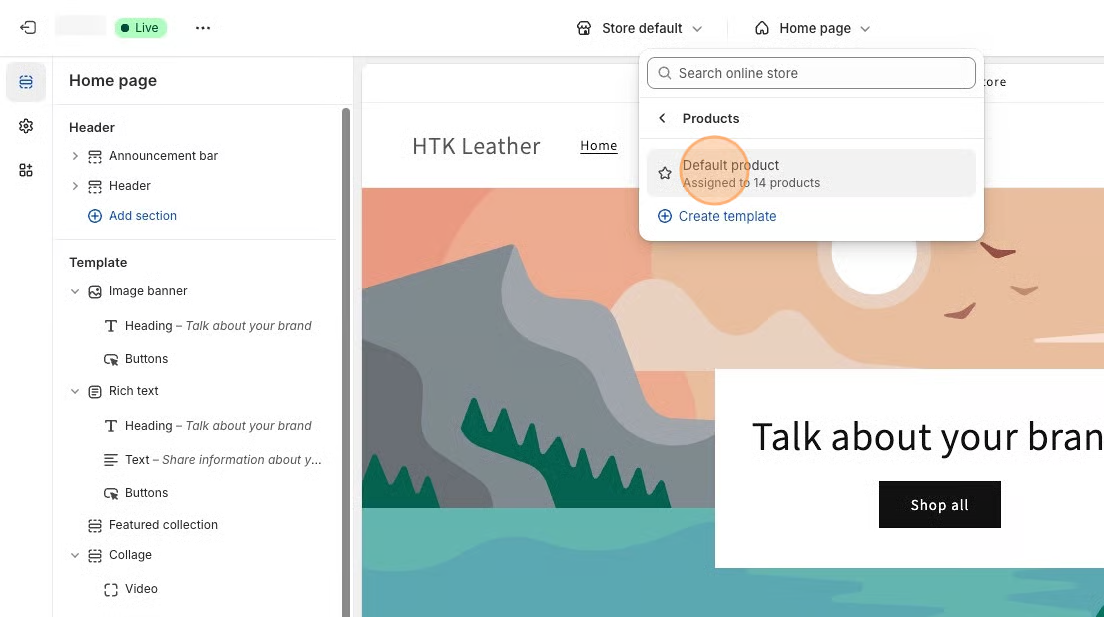
3\. Select **Products** from the dropdown menu in the header and then select a product template. **Default product** is the standard template for Studio theme.
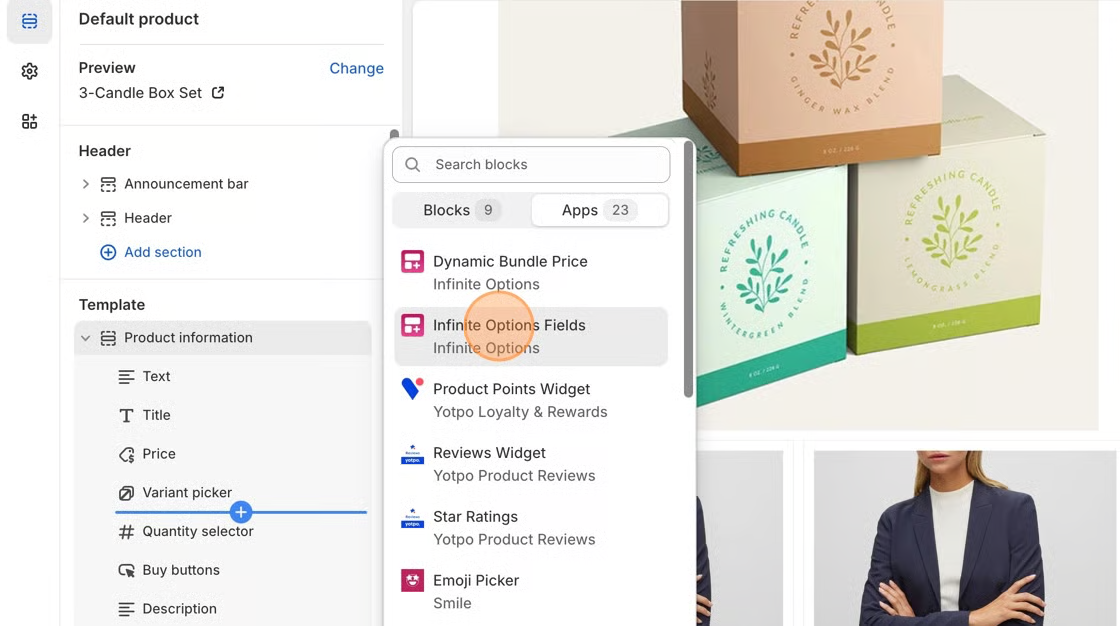
4\. In the **Product Information** section of the left-hand toolbar, hover below **Variant picker**, click the + symbol, then select the **Infinite Options Fields** block in Apps.
5\. **Save** your changes.
6\. You can now start creating options for your products. Follow the instructions in [this article](https://github.com/shoppad/docs-infinite-options/blob/master/welcome/create-custom-options/README.md) to get started.
***
**Creating an option that needs an additional cost for customization?**
Our Product Bundles feature allows you to attach an add-on product to the option selection so you can add an extra cost to your main product. Create new products like a $5.00 gift wrapping and bundle it to your option. When selected, both products will be added to cart.
[Click here to learn more about the native bundling feature.](broken://pages/dMNqfyywVN5r1WsZqkRH)
**Looking to add more features? Click on the name of the feature to learn more.**
[Date picker](broken://pages/dtv3wSNbKIdpXb94pesi): A calendar option that lets your customers easily select a date.
[Swatches](broken://pages/SH8Dz6zJd5rhXWmNixS6): Attach images or colors to options.
[Conditional Logic](/infinite-options/conditional-logic.md): Display or hide options based on their previous option selections.
[Use Conditional Logic with Swatches](/infinite-options/conditional-logic/swatches.md): Display swatches based on a previous option selection and vice versa.
[Creating a Variety Pack:](/infinite-options/popular-setups/mix-and-match-variety-pack-or-gift-pack-example.md) Set up multiple drop-down menus so your customers can select different scents or flavors for a variety pack product.
***
**Want to match your options to better match your Studio theme?**
Please click [here](https://github.com/shoppad/docs-infinite-options/blob/master/visual-changes-adding-styling/studio-theme/README.md) for instructions on how to do this!