> For the complete documentation index, see [llms.txt](https://shoppad.gitbook.io/infinite-options/llms.txt). Markdown versions of documentation pages are available by appending `.md` to page URLs; this page is available as [Markdown](https://shoppad.gitbook.io/infinite-options/welcome/install-infinite-options-on-a-specific-theme/manually-reposition-infinite-options-on-2.0-theme.md).
# Manually reposition Infinite Options on 2.0 Theme
Turning on the [Infinite Options app embed](https://shoppad.gitbook.io/infinite-options/welcome/how-to-install#enable-infinite-options-by-turning-on-the-app-embed) is the only thing you need to do to enable Infinite Options on a 2.0 theme. Once it's toggled on, your options automatically display above the Add to Cart button on your product pages, no other setup required.
The app embed places your options in the default position, above the Add to Cart button.
Follow the steps below **only if** you want your options to appear at an exact spot instead. This involves adding the **Infinite Options Fields** block to your product template manually.
{% hint style="warning" %}
If you are comfortable with your options automatically appearing above the Add to Cart button on product pages, you **do not** need to follow this manual repositioning guide. You only need to ensure that you have [turned on the app embed](https://shoppad.gitbook.io/infinite-options/welcome/how-to-install#enable-infinite-options-by-turning-on-the-app-embed).
{% endhint %}
{% hint style="info" %}
If you switch or publish a new theme in the future, you will need to repeat these steps.
{% endhint %}
***
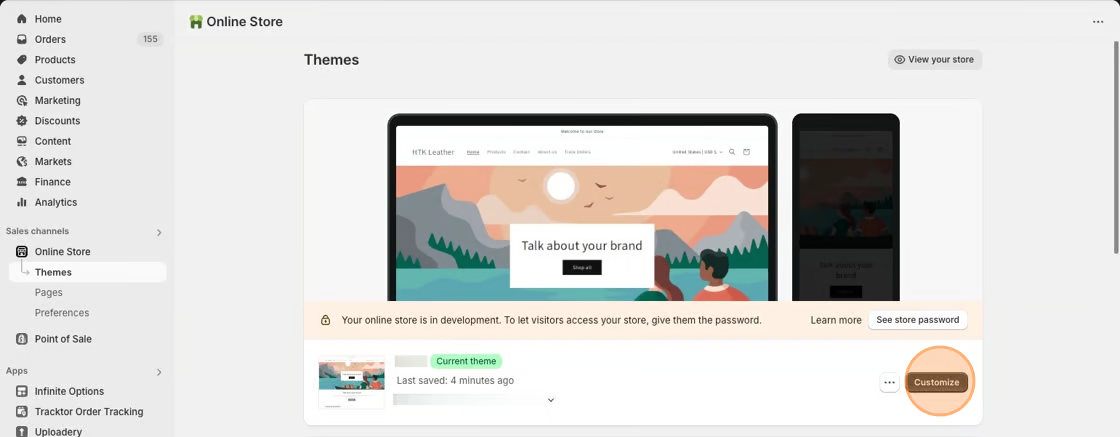
### Step 1: Open the Theme Editor
From your Shopify admin:
1. Go to Online Store > Themes.
2. Find the theme you want to use.
3. Click **Customize**.
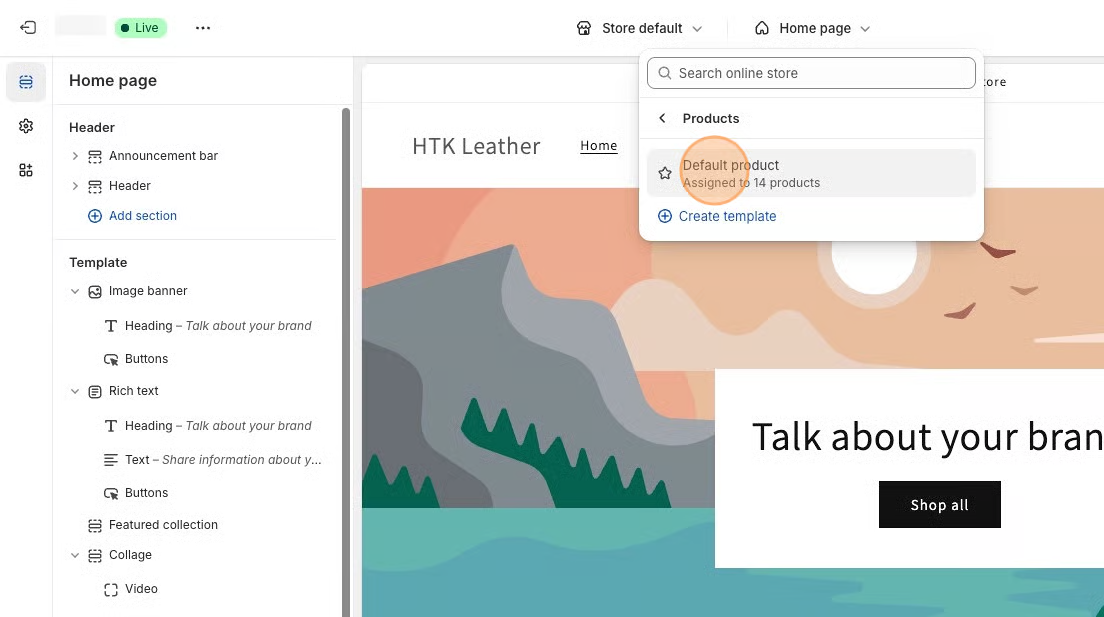
### Step 2: Open a Product Template
In the theme editor:
1. Use the page selector at the top of the screen.
2. Choose **Products**.
3. Select the product template you want to edit.
If your store uses multiple product templates, you'll need to add the Infinite Options app block to each template where you'd like options to appear
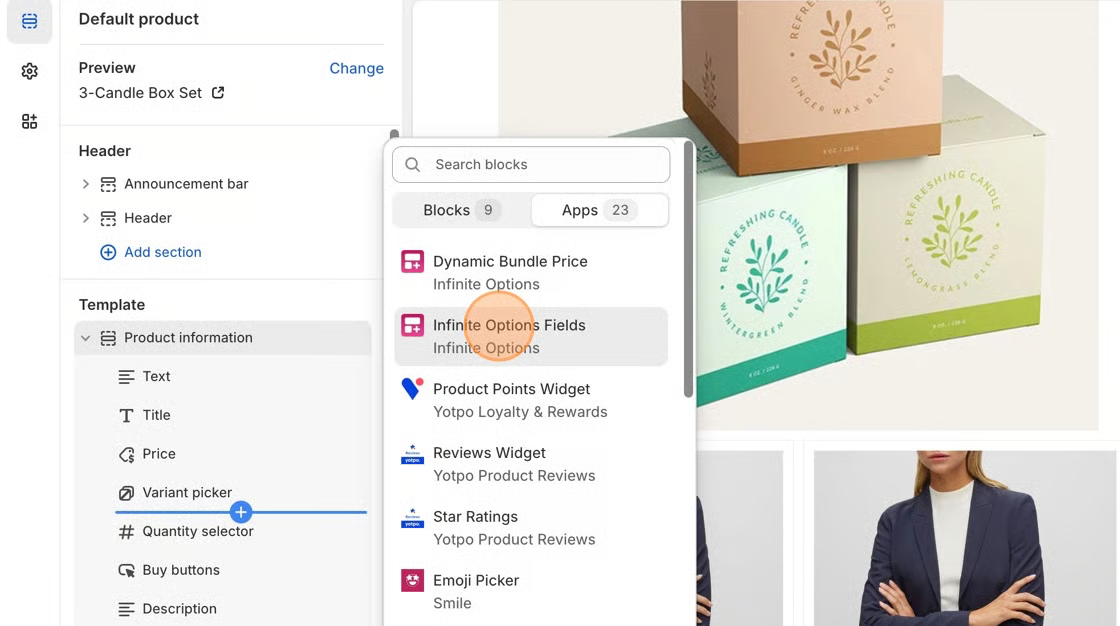
### Step 3: Add the Infinite Options Block
In the left sidebar:
1. Select the **Product information** section.
2. Click **Add block**.
3. Choose **Apps**.
4. Select **Infinite Options Fields**.
5. Position the block where you'd like your options to appear, such as above the Add to cart button.
***
### Step 4: Save Your Changes
Click **Save** in the upper-right corner of the theme editor.
Your theme is now ready to display your custom options.
### Step 5: Check That Infinite Options Is Working
Now that you've installed the app block, it's time to make sure everything is working.
Infinite Options won't appear while you're editing products in Shopify. Instead, your custom options appear on the page where your customers buy your product.
To check your option:
1. In Shopify Admin, open the product you assigned your option set to.
2. Click **Preview** or **View**.
3. If your store is password protected, enter your storefront password.
4. Look for your option above the **Add to cart** button.
If you see your option, your installation is complete.
### You're in the right place if you can see:
* Your product photos
* Your product title
* Your product price
* The **Add to cart** button
If you can see these, you're viewing the same page your customers will use.
Your Infinite Options fields should appear above the **Add to cart** button.
{% hint style="info" %}
**Using a trial store?**
If your store is password protected, that's okay. Click **Preview** or **View**, enter your storefront password if prompted, and then check your product page for your option.
{% endhint %}
### Still don't see your option?
Before checking your setup, make sure you're looking at the customer-facing product page.
Infinite Options will not appear:
* while editing products in Shopify
* in the Shopify product editor
* inside the Infinite Options app
It only appears on the page where customers buy your product.
If you're on the correct page and still don't see your option, continue with the troubleshooting steps below.
### Troubleshooting
### Still don't see your option?
Before continuing, make sure you're checking the customer-facing product page.
If you're viewing the Shopify product editor or the Infinite Options app, you won't see your custom options.
Next, confirm your option set is assigned to the correct product.
Infinite Options supports assigning option sets by:
* Product
* Product tag
* Product type
* Vendor
* All products
If you're assigning by **tag**, make sure the product tag matches exactly.
For example:
❌ Cookie-box-4
✅ Cookie Box (4 Pack)
As you type, Infinite Options will suggest matching tags. Once you've selected the correct tag, you'll also see a **Preview 1 matching product** link. This is a quick way to confirm your option set is assigned to the intended product before checking your product page.
Even a small difference in the tag will prevent the option from displaying. You will see the text display "0" matching products
### Adding Additional Pricing?
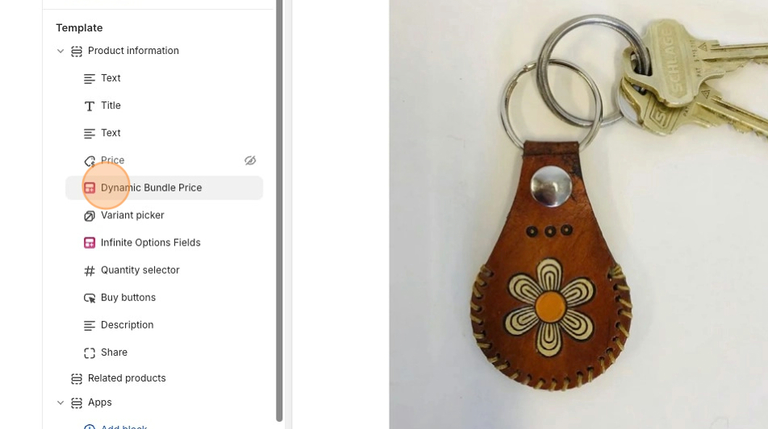
If you plan to charge for options using **Native Bundling** or **Product Bundles**, you may also need to add the [**Dynamic Bundle Price**](/infinite-options/increase-the-cost-of-an-option/show-price-changes-on-the-product-page.md) block so the product price updates when paid options are selected.
You can add it in the same product template by clicking **Add block → Dynamic Bundle Price**.
#### Next Steps
If your option appears on your product page, you're all set!
If your option still isn't showing, continue to the [**My options are not showing**](/infinite-options/managing-your-options/dont-display-options-on-certain-products.md) troubleshooting guide for additional troubleshooting steps.