# Reinstall Infinite Options After Switching Themes (2.0)
When you publish or switch to a new theme, you must reinstall Infinite Options in that theme.
App blocks do not transfer between themes.
Until you re-add the Infinite Options block, your options will not appear on your product pages.
***
### Step 1: Open the Theme Editor
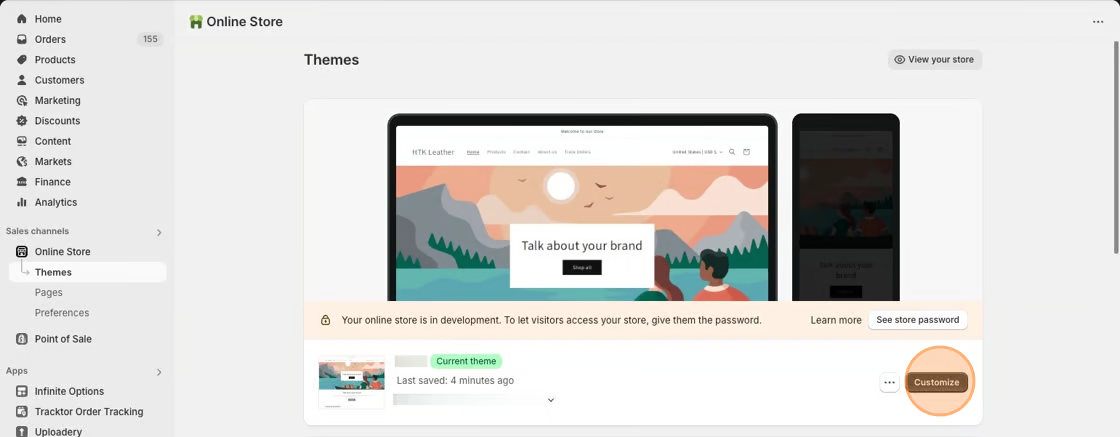
1. From your Shopify admin, go to **Online Store → Themes**
2. Click **Customize** next to your new theme
### Step 2: Open a Product Template
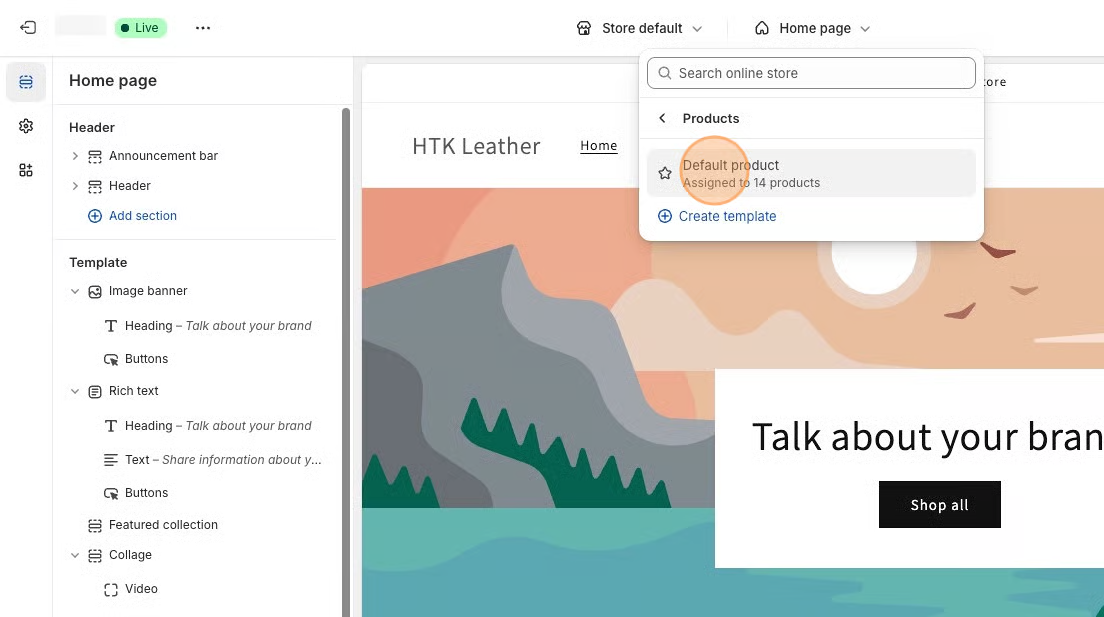
1. At the top of the theme editor, click the dropdown menu
2. Select **Products**
3. Choose your product template (most stores use the Default product template)
### Step 3: Add the Infinite Options Block
In the left sidebar:
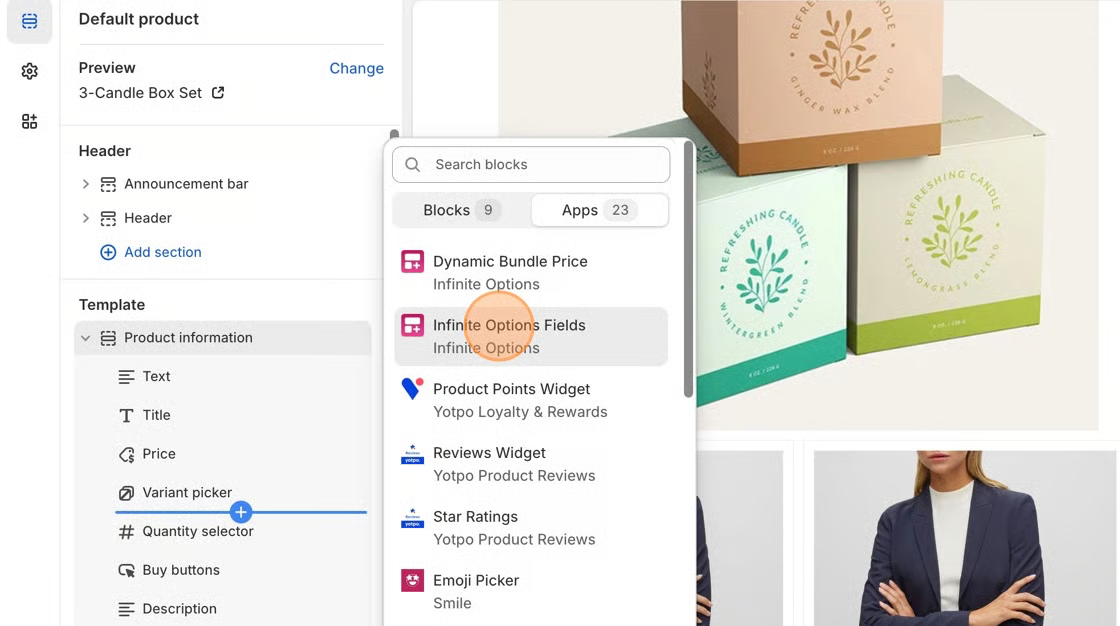
1. Locate the section that contains your product title, price, and variant selector
2. Click **Add block**
3. Select **Infinite Options Fields** from the **Apps** tab
If the Infinite Options block does not appear, your theme is not a Shopify 2.0 theme.
### Step 4: Position the Block
Drag the Infinite Options Fields block to your desired position.
Most merchants place it:
* Below the variant selector
* Above the quantity selector
* Above the Add to Cart button
***
### Step 5: Save
Click **Save** in the top right corner.
Infinite Options is now installed.
You can begin creating Option Sets inside the app.
### Re-Add the Dynamic Bundle Price Block (If Using Additional Pricing)
If you use Native Bundling or Product Bundles and want the product price to update when customers select paid options, you must also re-add the **Dynamic Bundle Price** block.
In the same product template:
1. Click **Add block**
2. Select **Dynamic Bundle Price**
3. Position it where the price should appear
4. Click **Save**
If pricing is not updating on the product page, this block is likely missing.