> For the complete documentation index, see [llms.txt](https://shoppad.gitbook.io/kitkarts/llms.txt). Markdown versions of documentation pages are available by appending `.md` to page URLs; this page is available as [Markdown](https://shoppad.gitbook.io/kitkarts/kit-karts-frequently-asked-questions.md).
# Kit Karts: Frequently Asked Questions
## How do I install Kit Karts?
In order for Kit Karts to work, you will need to enable the **Automatic Delivery** Setting in the Dashboard tab. Make sure to save your changes!
## How can I edit the recovery email template?
The recovery email template can be adjusted in the Recovery Email tab of the Kit Karts dashboard. You can add a logo, change the logo's width, change the color of the Items in your cart button and add a Visit our store link, along with a custom message.
You can also adjust the content and text of the email using HTML code, as well as any liquid variables from this help article: [Click here!](/kitkarts/email-template-variables.md)
## Can Kit Karts send more than one automated email at different hours?
At this moment, Kit Karts will only send emails once per day (based on the time you selected in the app).
## How can I test Kit Karts to ensure it's working?
You can send yourself a test email to ensure that Kit Karts is working. In the **Recovery Email** tab, underneath the feature's description, you should see **Send Test Email.** Click and make sure that it is going to the correct email. Then, press **Send**.
To test Kit Karts out, you can leave an abandoned cart with your personal email address. You can proceed to checkout, enter your email, and when you reach payments, close the tab. Once you navigate away, the cart is abandoned, and the following day, you should receive the recovery email.
## Does Kit Karts track and send out emails for past abandoned orders prior to install?
Once downloaded, Kit Karts will search for abandoned carts from one month prior to the download. At that time, Kit Karts will send those emails. After that, the app will start to search each day.
## Can I manually send cart recovery emails?
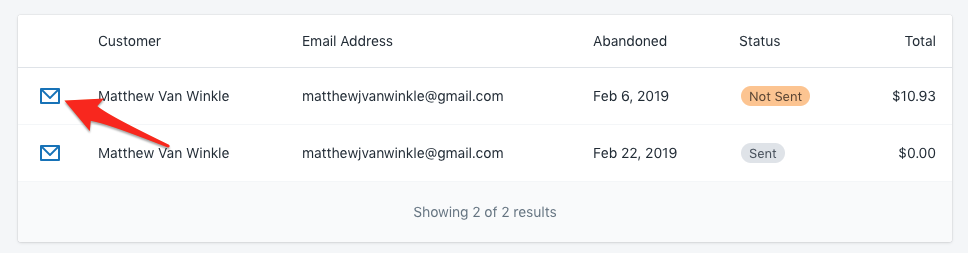
Certainly! You can manually send an abandoned cart emails by following these steps
1\. Click into your **Abandoned Carts** tab.
2\. Click on the abandoned cart envelope symbol that still needs to be recovered.
3\. Click the **Send** button.
## How can I tell if recovery emails are being sent out?
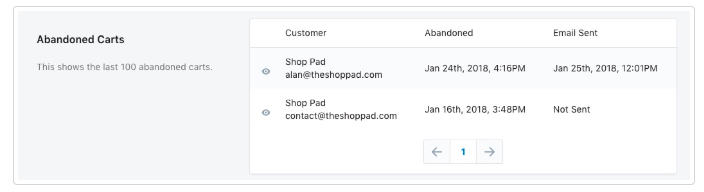
You can take a look at the **Abandoned Carts** section which is located in your **Abandoned Carts** tab. You can see if your recovery emails are indeed being sent out or not.
Additionally, you can leave an abandoned cart with an email that you can check. You can proceed to checkout to the point where you enter an email.