# Displaying the Page Studio Styling

By default, the page.studio template is inserted into your current theme. This page template overrides most of your theme's styles, so the page you see within the editor closely resembles the end result.

Follow the steps below if you'd like to use this template with other themes.

1. Starting from your Shopify admin dashboard, click on **Online Store**, then click on **Themes.**
2. Find the theme you want to edit, click the **...** button, then select **Edit code.**

<figure><img src="https://2399025339-files.gitbook.io/~/files/v0/b/gitbook-x-prod.appspot.com/o/spaces%2Flklrekxvi2ofo3eXbyBY%2Fuploads%2Fdvq0dyeRTxU7ITqCSG8N%2Fedit-code-button.png?alt=media&#x26;token=005b6273-7bc3-414f-8b5a-13380c9484ac" alt=""><figcaption></figcaption></figure>

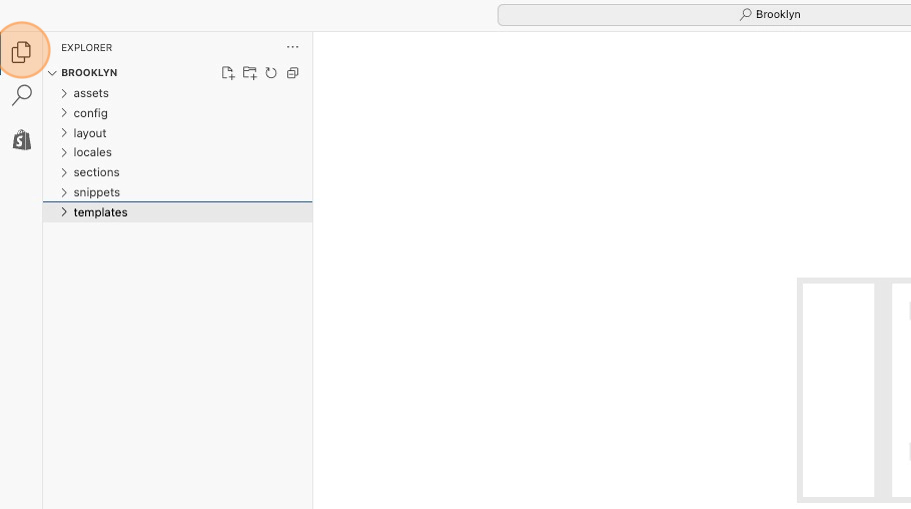
3. On the left side, click on the **Files** icon to open the File Explorer.

<figure><img src="https://2399025339-files.gitbook.io/~/files/v0/b/gitbook-x-prod.appspot.com/o/spaces%2Flklrekxvi2ofo3eXbyBY%2Fuploads%2FD8agY85KGOyWxkoKg7rc%2Ffile-explorer-icon.png?alt=media&#x26;token=c48a1b2c-1801-4e08-aee5-09b98361090b" alt=""><figcaption></figcaption></figure>

4. Right-click on **templates** and select **New File**.

<figure><img src="https://2399025339-files.gitbook.io/~/files/v0/b/gitbook-x-prod.appspot.com/o/spaces%2Flklrekxvi2ofo3eXbyBY%2Fuploads%2F8Cv53VS6tfDIRNEPbhZp%2Fadd-template-file.png?alt=media&#x26;token=142cd41c-f9f8-4fb1-93bf-465ef9f214ab" alt=""><figcaption></figcaption></figure>

5. Name the new file **page.studio.liquid** and press enter.

<figure><img src="https://2399025339-files.gitbook.io/~/files/v0/b/gitbook-x-prod.appspot.com/o/spaces%2Flklrekxvi2ofo3eXbyBY%2Fuploads%2FYaUmViezYCkqhK3DtOO6%2Fpage.studio.liquid.png?alt=media&#x26;token=e1845eae-205d-4550-9980-f53832602d5a" alt=""><figcaption></figcaption></figure>

6. Copy the code snippet below and paste it into the new file.

```html
<link href="//studios.cdn.theshoppad.net/pagestudio/blocks.css?v={{ page.metafields.global.version | default: 3 }}&shop={{ shop.permanent_domain }}" rel="stylesheet" type="text/css"/>
<script src="//studios.cdn.theshoppad.net/pagestudio/pagestudio.dist.js?v={{ page.metafields.global.version | default: 3 }}"></script>
<div class="studioengine">{{ page.content }}</div>
```

6\. **Save** your changes at the top right.

<figure><img src="https://2399025339-files.gitbook.io/~/files/v0/b/gitbook-x-prod.appspot.com/o/spaces%2Flklrekxvi2ofo3eXbyBY%2Fuploads%2F69z3ZogbHuZ1fTFPQYuI%2Fadd-code-and-save.png?alt=media&#x26;token=d32eb6e1-0b06-462f-b524-353271484057" alt=""><figcaption></figcaption></figure>

Now you'll be able to select the **page.studio** template from the Page Studio dashboard, and use it to construct beautiful pages!

<figure><img src="https://2399025339-files.gitbook.io/~/files/v0/b/gitbook-x-prod.appspot.com/o/spaces%2Flklrekxvi2ofo3eXbyBY%2Fuploads%2FQTVvNpSsjmtcfkdP0qb1%2Fpage-studio-template.png?alt=media&#x26;token=1844bbdd-9ef4-4863-b833-0217ec412f27" alt=""><figcaption></figcaption></figure>
