> For the complete documentation index, see [llms.txt](https://shoppad.gitbook.io/tracktor/llms.txt). Markdown versions of documentation pages are available by appending `.md` to page URLs; this page is available as [Markdown](https://shoppad.gitbook.io/tracktor/integrations/shopify-flow.md).
# Shopify Flow
Shopify Flow is available on the [Shopify App Store](https://apps.shopify.com/flow) and for [Shopify Plus merchants](https://www.shopify.com/plus/solutions/ecommerce-automation?utm_source=shopify\&utm_medium=docs\&utm_campaign=shopify-flow-index) only.
Tracktor can integrate with [Shopify Flow](https://apps.shopify.com/flow), a Shopify Plus app. Shopify Flow is an eCommerce automation platform that helps you streamline manual tasks and processes within your store and across your apps. This opens up many opportunities for Tracktor functionalities and increases your store's efficiency.
This article will walk you through how to create workflows involving Tracktor.
### Getting Started
Tracktor's Shopify Flow integration allows you to define triggers for **Tracktor Status Changes.**
An example of a status change is when a package goes from "In Transit" to "Out for Delivery." Then, a status change like "Out for Delivery" to "Delivered" can trigger a **Tracktor Status Change** workflow.
### Creating Tracktor Workflows
1\. From your Shopify admin dashboard, click **Flow** from the **Apps** section.
2\. Click **Create Workflow**.
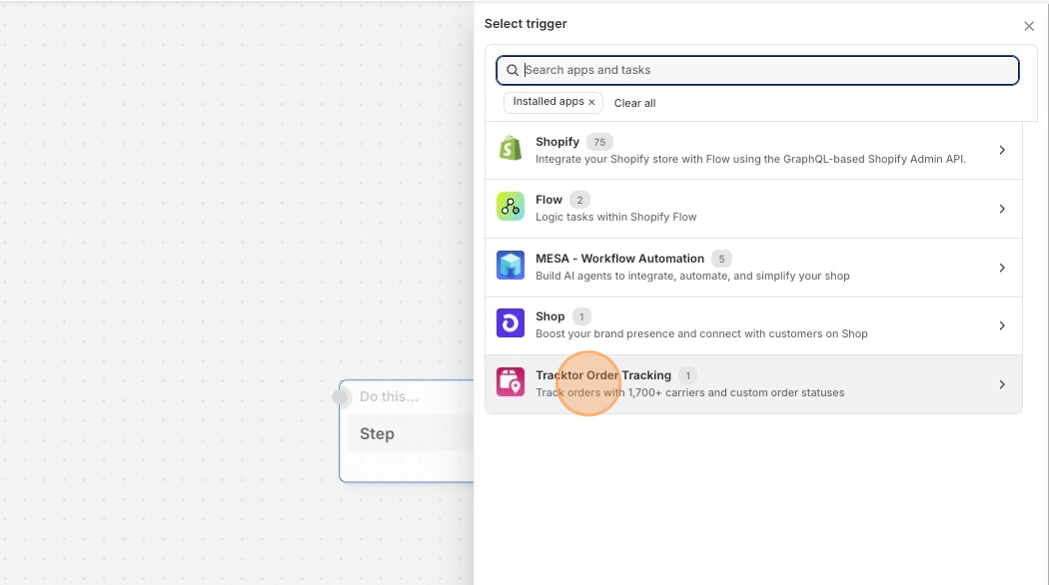
3\. **Select a trigger** that will begin the workflow.
4\. Choose the Tracktor trigger from the sidebar on the right.
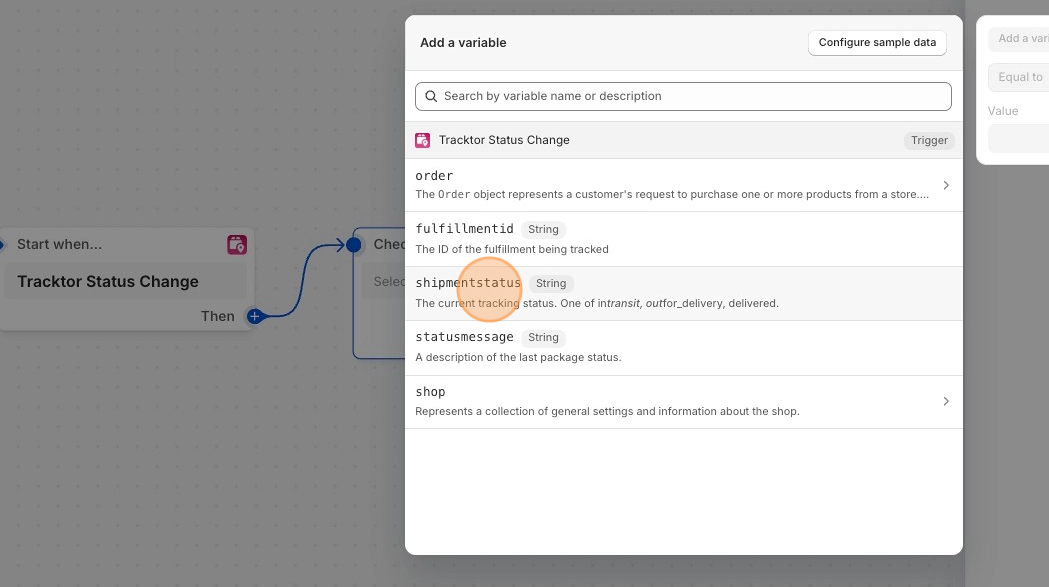
5\. Click **+** **Condition** and select the condition that must be met before any actions can run.
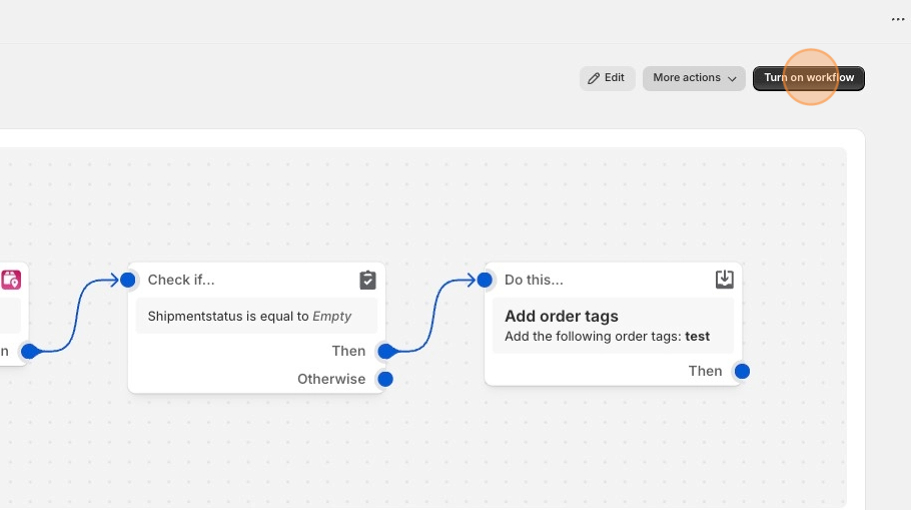
6\. Click **Add action** and select the action that will run based on the results of the condition.
7\. **Save** and title your workflow.
8\. Click **Turn on workflow** to enable it. The workflow will run automatically each time the trigger event occurs on your store.
### Tracktor Triggers
Triggers are events that start (trigger) workflows. These events can be internal events in Shopify or external events from connected Shopify apps. Each trigger carries a list of related conditions and actions that you can use to enhance your workflow.
By using the Tracktor trigger, you can achieve a desired action such as sending an email or awarding loyalty points when a Tracktor status changes.
### Tracktor Conditions
Conditions help ensure that your workflow will run actions only when certain conditions are met. For example, conditions are IF/THEN statements. They can check against the properties of the trigger event as well as properties of objects (orders, products, customers, etc...) that are involved in the event.
**Fulfillment ID:** Triggers an action if a **Fulfillment ID** exhibits a predetermined condition.
**Shipment Status:** Triggers an action if a **Shipment Status** exhibits a predetermined condition.
**Status Message:** Triggers an action if a **Status Message** exhibits a predetermined condition.