> For the complete documentation index, see [llms.txt](https://shoppad.gitbook.io/tracktor/llms.txt). Markdown versions of documentation pages are available by appending `.md` to page URLs; this page is available as [Markdown](https://shoppad.gitbook.io/tracktor/readme/getting-started-with-tracktor.md).
# Getting Started with Tracktor
### What Trackor Does:
If your orders ship from locations you'd rather not show customers, or your fulfillment service uses carriers that Shopify doesn't natively support, Tracktor solves both of those problems.
Tracktor gives your customers a branded tracking page directly on your store where they can see their order status in one click, without you exposing shipping origins or sending them to a carrier website that can't find their order.
### The Features
* **Hide shipping origin details** -- prevent specific locations from appearing in your tracking details. Add China for example and any tracking updates from China won't be visible to your customers. \[[Learn more about dropshipping settings](/tracktor/dropshipping-settings/hide-china-from-tracking-details.md#hide-shipping-details-for-your-orders).]
* **Support any carrier** -- Tracktor maps over 1,050 carriers so customers can track their order no matter how it was fulfilled
* **Keep customers on your store** -- redirect all tracking links to your branded tracking page instead of the carrier website
* **Reduce "where is my order" support requests** -- when customers can track in one click, they don't need to email you
* **Display product recommendations** -- show customers relevant products while they wait for their order
* **Send delivery notifications automatically** -- notify customers when their order is out for delivery or delivered
* **Give you visibility into shipping issues** -- order alerts flag delivery problems so you can act before a customer reaches out
{% hint style="info" %}
Most merchants are up and running in a few minutes.
{% endhint %}
### Where to start
Once you have installed Tracktor, here is the recommended setup order:
1. **Set up your Tracking Page** -- choose a layout, match your brand colors, and configure what information customers can see when they track an order
2. **Set up Carrier Mapping** -- if your fulfillment service uses carriers Shopify doesn't natively support, add them here so customers can track in one click
3. **Enable Location Substitution** -- if you ship from locations you'd rather not show customers, set this up before you start fulfilling orders
4. **Turn on Notifications** -- so customers automatically receive out for delivery and delivered emails
5. **Enable the Tracking URL** -- redirect all tracking links in your store to your Tracktor page so customers never get sent to a carrier website
{% hint style="info" %}
**Supported sales channels:** Tracktor is only compatible with the Online Store channel. It is not compatible with headless store configurations.
{% endhint %}
### Tracktor Dashboard
When you open Tracktor, you'll land on the dashboard. This is where you can see a snapshot of your current order statuses and any alerts that need attention. If an order has a tracking issue -- like a failed delivery attempt or an expired tracking number -- it will show up here so you can act on it quickly.
### Tracking Page
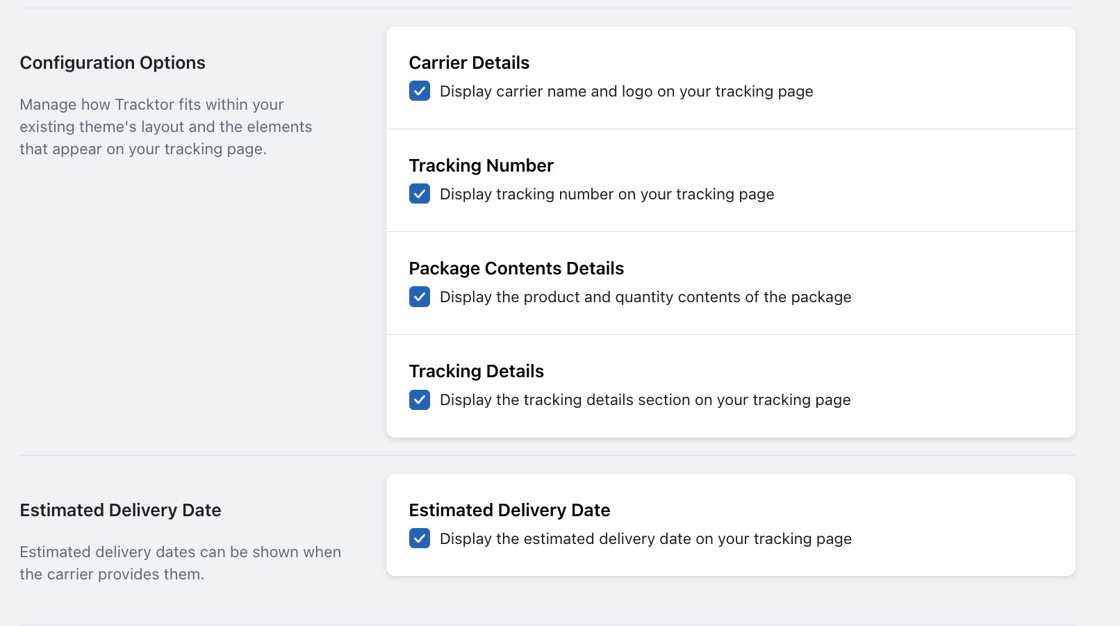
This is where you configure what your customers see when they track an order. You can choose a layout, set colors to match your brand, show or hide carrier details, and add custom HTML or CSS if you need more control.
Click the **Preview** button to see how your tracking page looks with tracking information. This does not display an actual order from your store
A few features worth knowing about:
* **Product Recommendations** -- show customers relevant products while they wait for their order
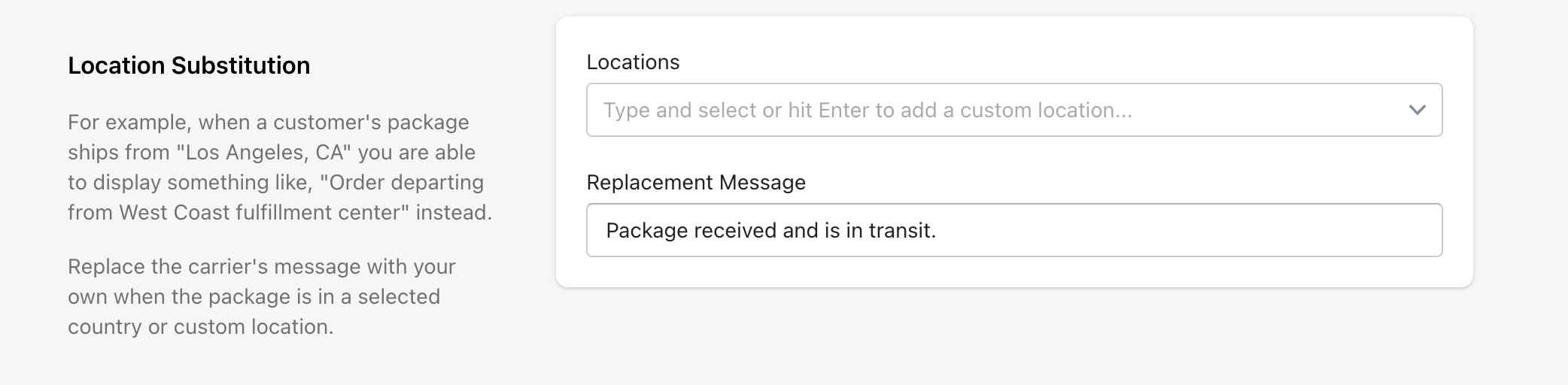
* **Location Substitution** -- prevent specific shipping locations from displaying on your tracking page. Useful if you ship from locations you'd rather not show customers
* **Carrier Mapping** -- add support for carriers Shopify doesn't natively recognize. Tracktor supports over 1,050 carriers
* **Estimated Delivery Date** -- display the estimated delivery date if your carrier provides it
* **Automatic Carrier Translation** -- translate carrier tracking updates into your preferred language
* **Tracking URL** -- automatically redirect all tracking links in your store to your Tracktor page. \[[Learn more about this feature and how it works](/tracktor/customize-tracktor/update-the-tracking-link.md).]
* **Custom Statuses** -- create your own order status labels to keep customers informed at every stage. Available on Premium plans and above
### Display Options
Choose between Modern, Vertical, Horizontal, or Customizable layouts. You can also switch between Light and Dark themes to match your store. If you choose Vertical or Horizontal, you can select a map style as well.
Use the color picker to set your progress bar color, or enter a hex value to match your brand exactly. You can also adjust the maximum width the tracking form takes up on the page.
### **Product Recommendations**
Show customers relevant products while they wait for their order. You can adjust where the recommendations appear on your tracking page.
### Location Substitution
Prevent specific shipping locations from displaying on your tracking page. This is useful if your orders ship from locations you'd rather not show customers. China is the most common use case. Select countries from the list or type in a custom location, and those tracking details won't be visible to your customers.
### Carrier Mapping
Need support for a carrier not available through Shopify's fulfillment system? Use Tracktor's **Carrier Mapping** feature to add support for [our list of over 1050 carriers](/tracktor/readme/supported-carriers.md).
[Click here to learn all about using the Carrier Mapping feature](/tracktor/readme/setting-up-carrier-mapping.md).
### **Estimated Delivery Date**
Display the estimated delivery date on your tracking page if your carrier provides it.
### **Notifications**
Notifications are turned on by default after installing Tracktor. When an order is marked out for delivery or delivered by the carrier, Tracktor will automatically notify your customers using Shopify's shipping templates. You can find and edit those templates in your Shopify admin under **Settings > Notifications**.
### **Tracking URL**
Automatically redirect all tracking links in your store to your Tracktor page -- including links on the Order Status page and in your shipping emails. \[Learn more about this feature and how it works.]
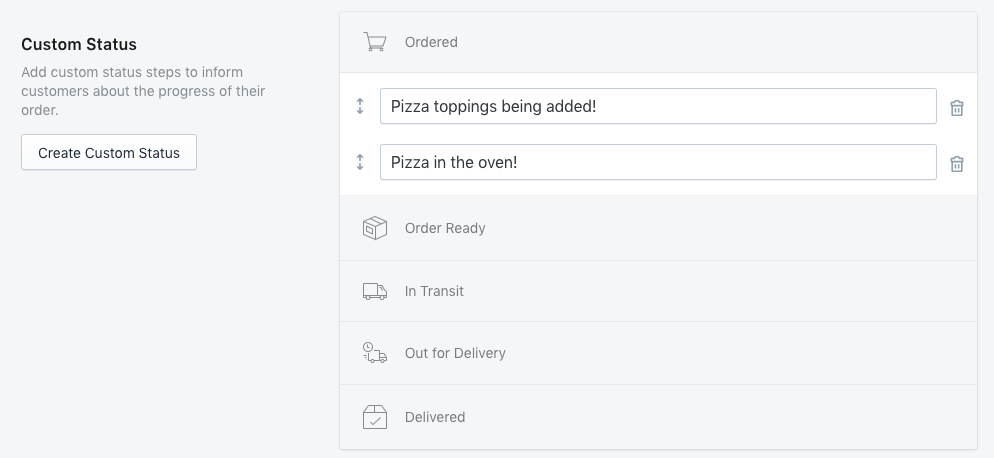
### Custom Status
You can create **Custom Order Statuses** to inform customers about the progress of their order. This help article will go over how to add them and set them to your orders: [Click here!](/tracktor/customize-tracktor/customize-tracktor-statuses.md) This is available only for **Premium** plans and above.
### Automatic Carrier Translation
Select a language from the dropdown to automatically translate all carrier tracking updates on your tracking page. Available on Premium plans and above.
#### Customize Language
If your language isn't listed or you want to adjust the wording to match your store's voice, use the Customize Language section to edit individual phrases on your tracking page. Available on Premium plans and above.
#### Custom HTML & CSS
If you are familiar with HTML code, you can add content above and below the tracking form on your page.
### Date and Time Formats
Configure how dates and times appear on your tracking page.
### Orders & Fulfillments
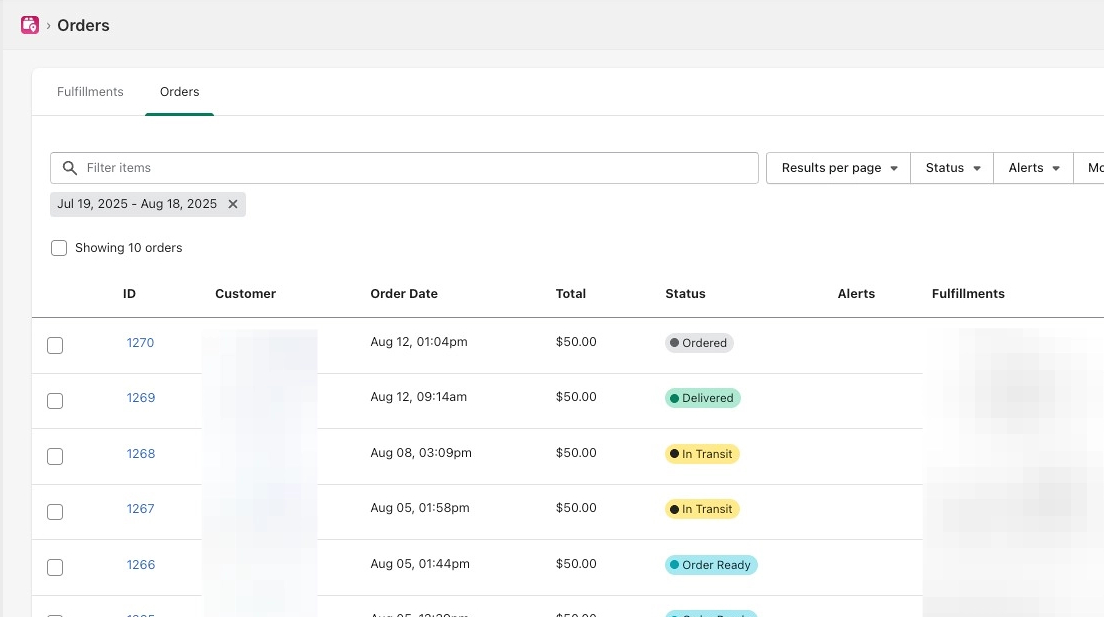
View all of your orders and fulfillments in one place. You can filter by status, alert type, date, or carrier, and see at a glance which orders have tracking issues. Clicking into an order lets you track it directly or update its status.
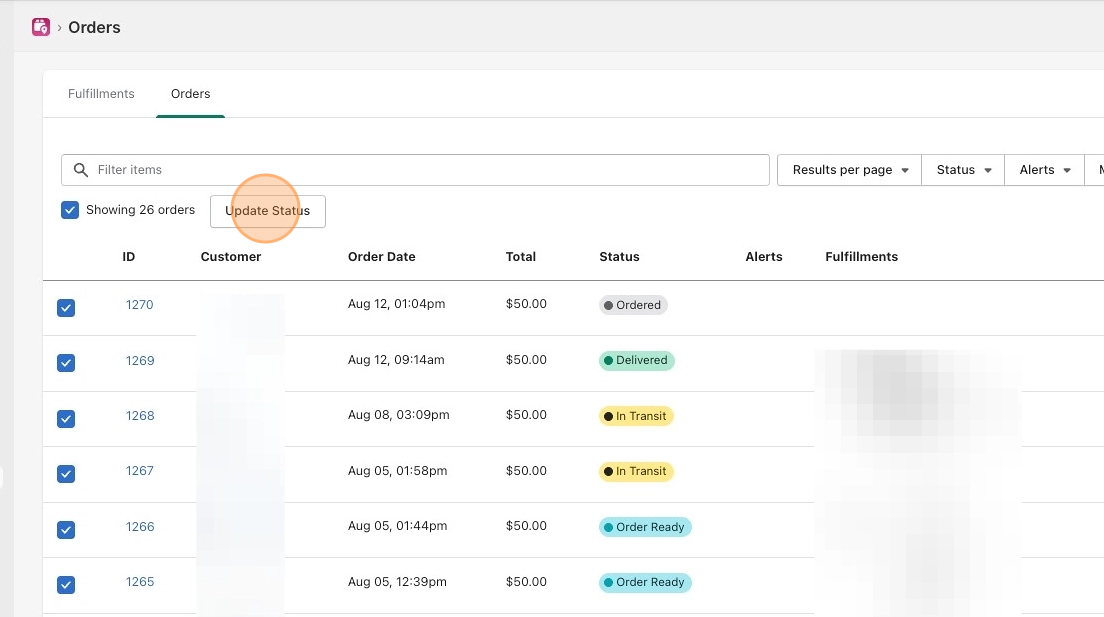
To update multiple orders at once, select the checkboxes next to the orders you want to update and click **Update Status**.
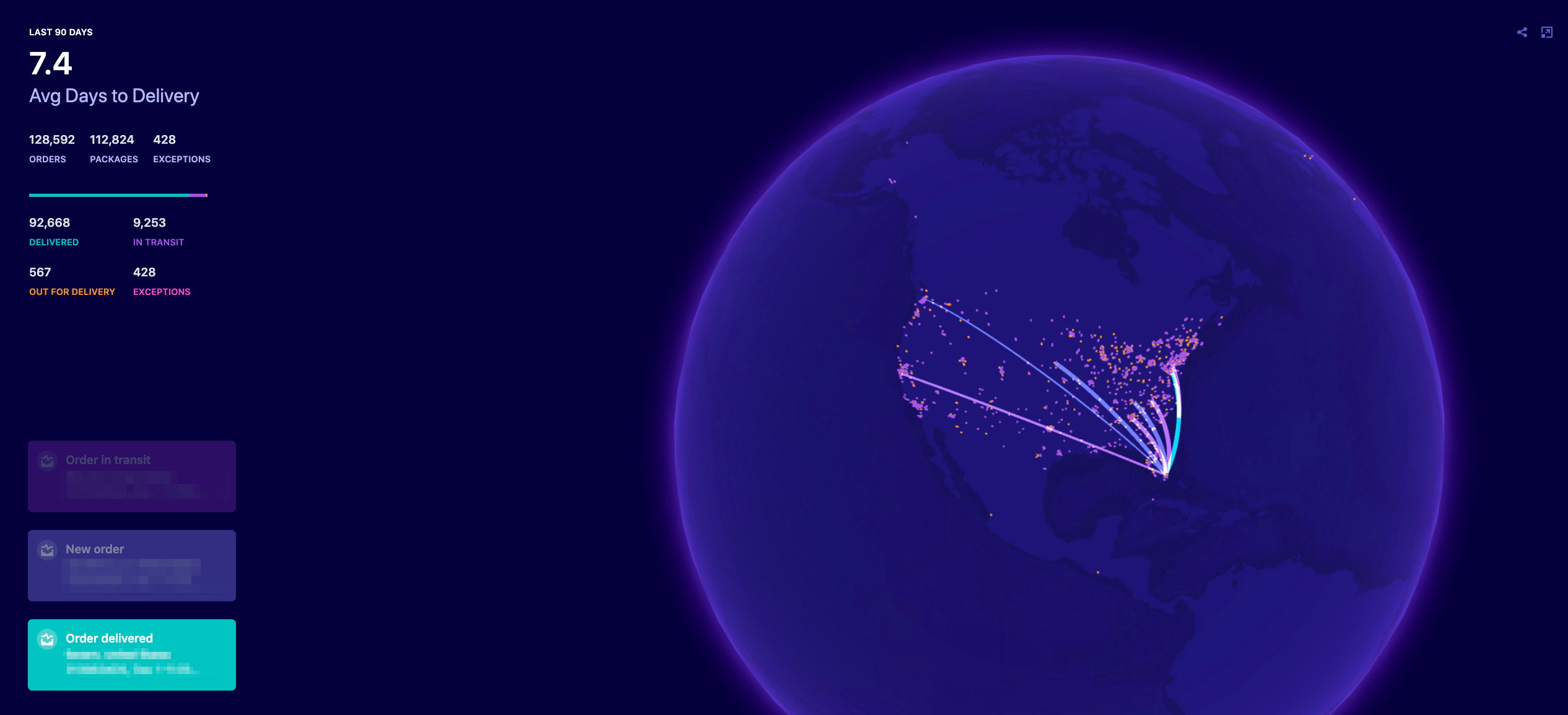
### Mission Control
A live world map showing where your shipments are right now. Also shows your average days to delivery so you can spot carrier performance trends over time.
### Delivery Reports
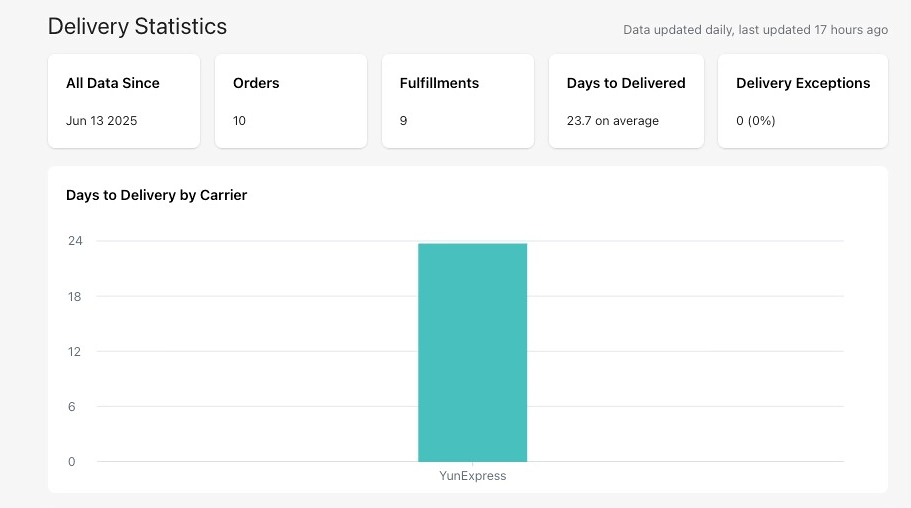
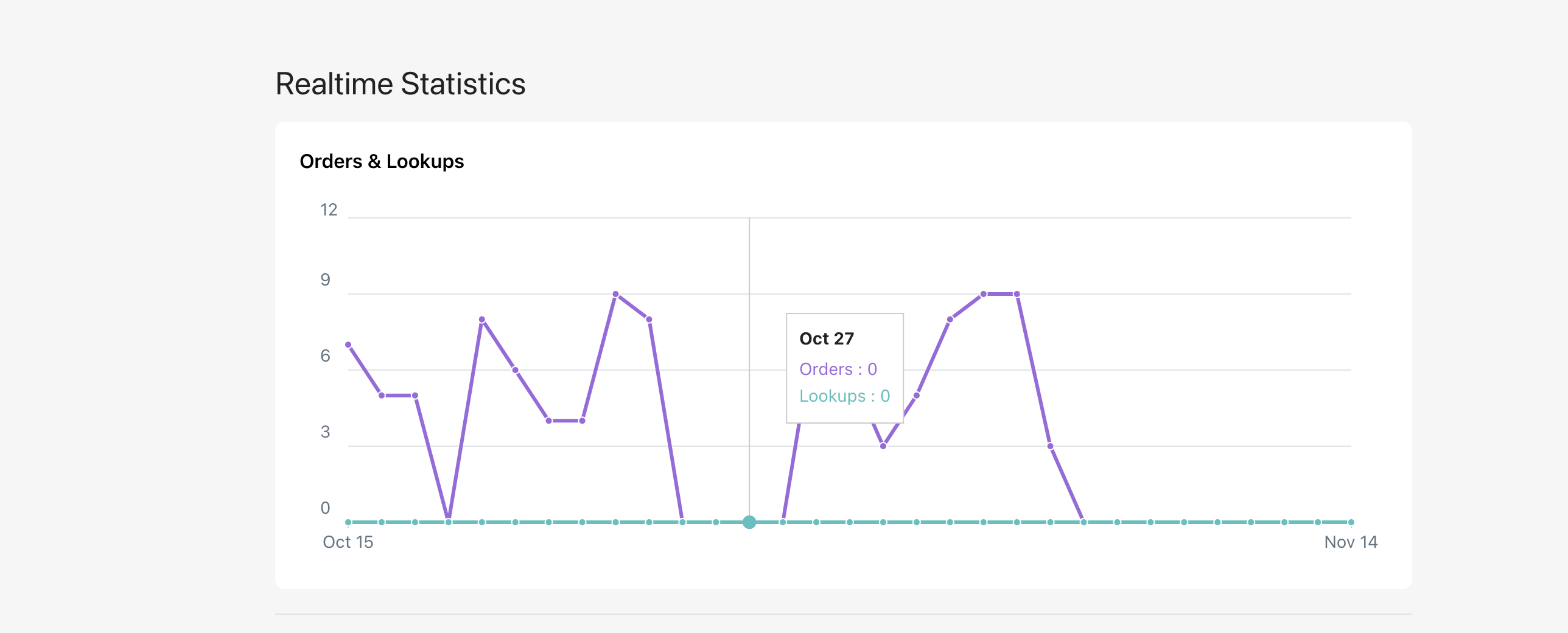
Track how often customers are using your tracking page, how many shipments you've sent, and how your carriers are performing. Useful for spotting patterns and understanding your store's shipping activity.
#### Delivery Statistics
The **Delivery Statistics** section breaks down your carrier's delivery times and your store's global reach.

%20copy.png?alt=media&token=043c048c-6588-404c-910a-90d7670d51f9)



%20copy%203.png?alt=media&token=ddb5995b-4a33-4325-8068-e19f2c36a5ab)
.jpeg?alt=media&token=4a4f9631-0ca1-4d96-9835-e83ecf61a5be)
%20copy%204.png?alt=media&token=c20a4205-7d59-463a-a446-e1468b3485e1)
%20copy%205.png?alt=media&token=b3172239-d523-4334-a49a-27f658f599f0)
.png?alt=media&token=00c35dc3-e66c-4fcd-b4e2-471ff27913f9)