# Customize or edit labels for upload image editor
By default, Uploadery's **in-browser image editor** feature will include some icons at the top for usability, as seen below:

To include some labels underneath them for a more clear user experience, follow these steps:

1\. Starting from your Shopify admin dashboard, click on **Online Store**, then click on **Themes**.
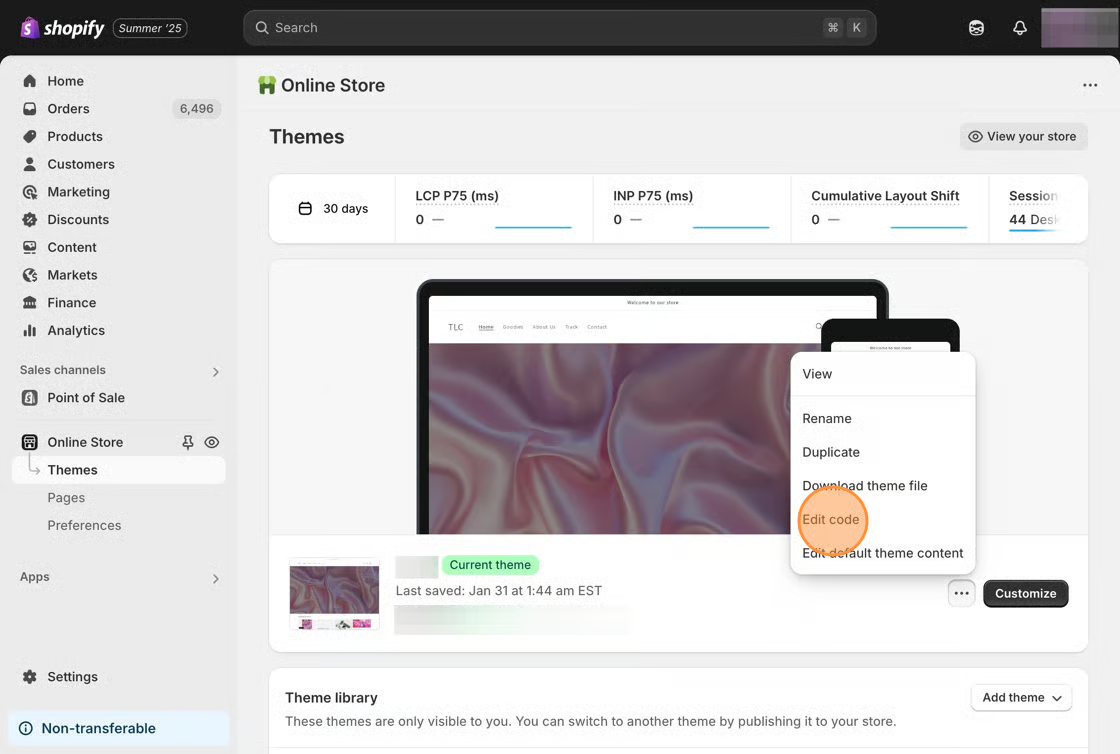
2\. Find the theme you want to edit, click the **Actions** button, then click **Edit code**.
3\. Open the **Assets** folder, then navigate to your theme's main CSS file (this file is commonly named *timber.scss.liquid*, *theme.scss.liquid*, *stylesheet.scss.liquid*, and *style(s).scss.liquid*).
4\. Paste the following code snippet at the bottom of the file.
```css
.uploadery-undo:after {
content: "Undo";
color: #fff;
display: block;
}
.uploadery-redo:after {
content: "Redo";
color: #fff;
display: block;
}
.uploadery-save:after {
content: "Save";
color: #fff;
display: block;
}
.uploadery-close:after {
content: "Close";
color: #fff;
display: block;
}
.uploadery-crop:after {
content: "Crop";
color: #fff;
display: block;
}
.uploadery-rotate-right::after {
content: "Rotate Right";
color: #fff;
display: block;
}
.uploadery-rotate-left:after {
content: "Rotate Left";
color: #fff;
display: block;
}
.uploadery-done:after {
content: "Done";
color: #fff;
display: block;
}
```
5\. **Save** your changes.
{% hint style="info" %}
If you need any help getting this set up, feel free to contact our support team. We'd be happy to help out!
{% endhint %}