> For the complete documentation index, see [llms.txt](https://shoppad.gitbook.io/uploadery/llms.txt). Markdown versions of documentation pages are available by appending `.md` to page URLs; this page is available as [Markdown](https://shoppad.gitbook.io/uploadery/customize-the-app/style-file-upload-fields.md).
# Style file upload fields
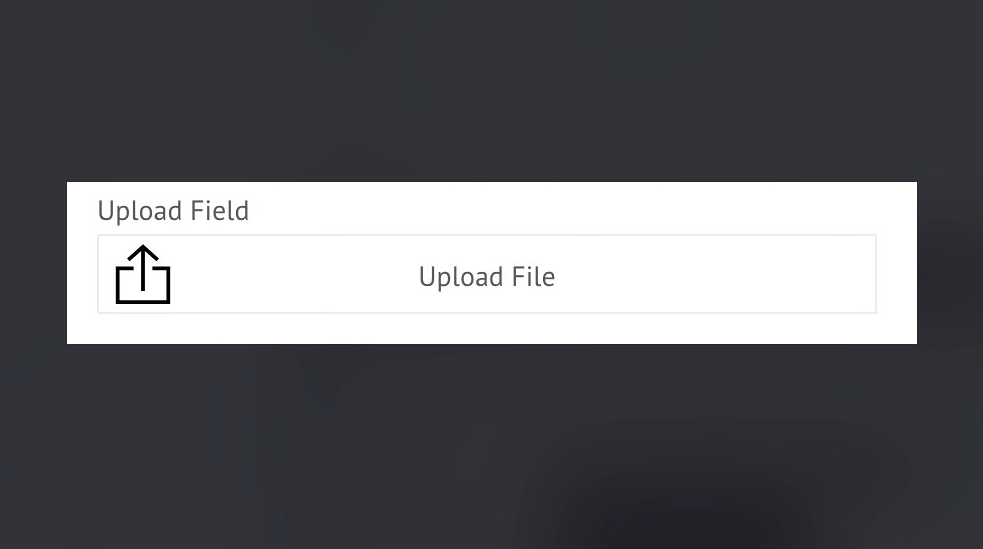
You can customize how Uploadery’s file upload field looks on your product page. This allows you to restyle the upload button and change the text that appears before and after a file is uploaded.
This guide applies to themes that use `product.liquid` or `main-product.liquid`.
Follow the steps below to make these changes.
### Step 1: Open Your Theme Code
From your Shopify admin:
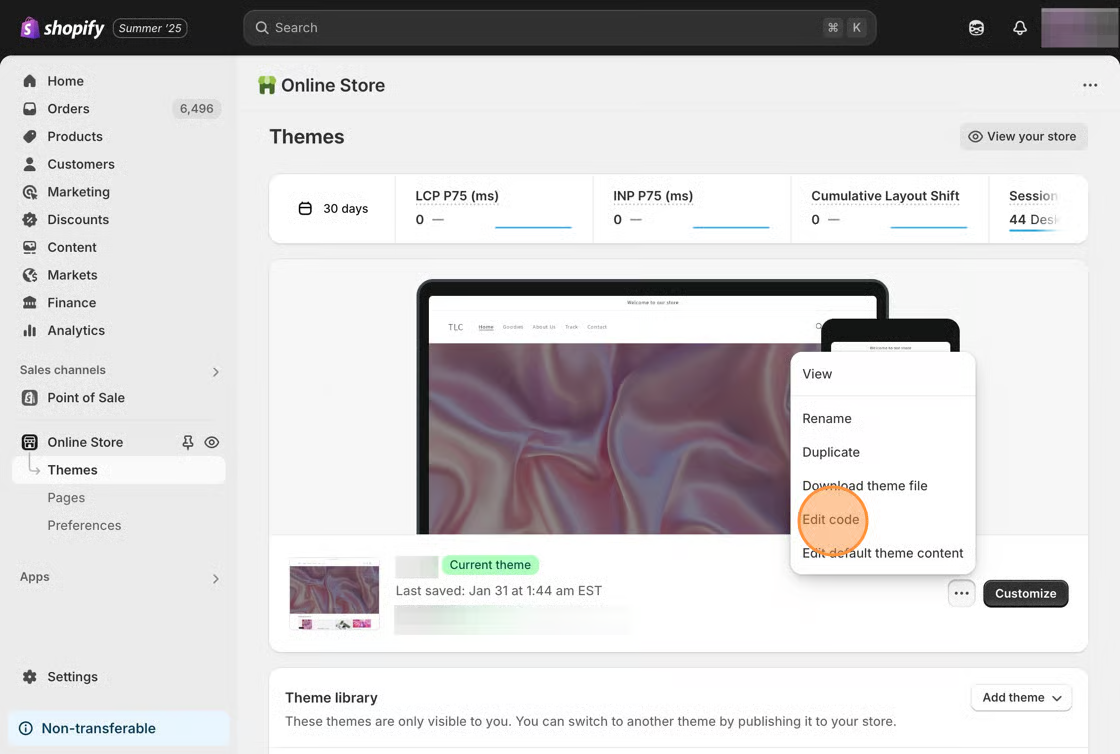
1. Go to **Online Store > Themes**
2. Find the theme you want to edit
3. Click **Actions**, then select **Edit code**
### Step 2: Locate Your Product Template File
In the **Templates** folder, look for:
```
product.liquid
```
If your theme does not have `product.liquid` and instead uses `product.json`Go to the **Sections** folder and open:
```
main-product.liquid
```
### Step 3: Add the Uploadery Script
Scroll to the bottom of the file and paste the following code:
```html
```
Click **Save**.
### Step 4: Add Custom Styling in Uploadery
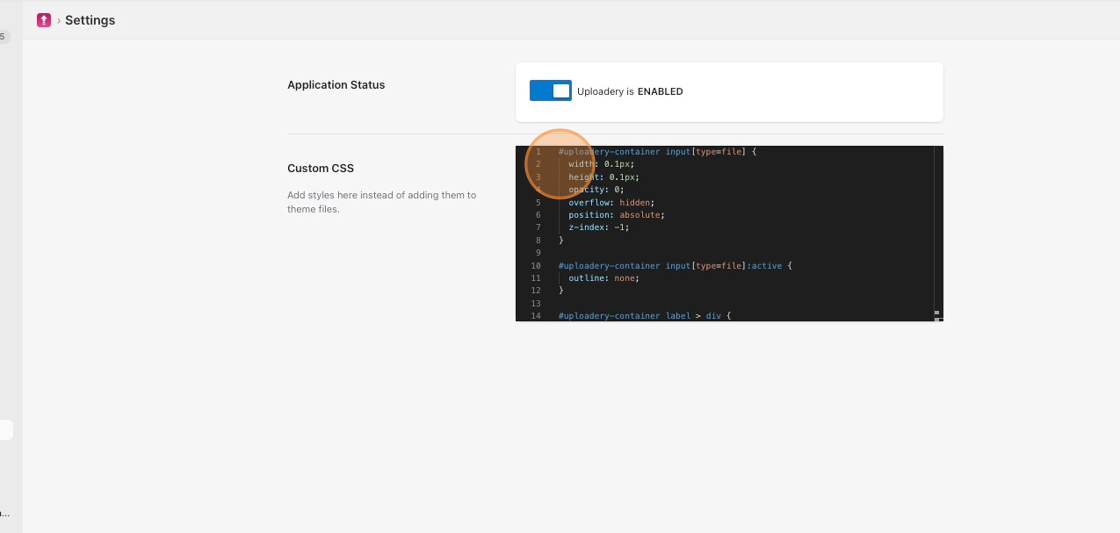
1. From your Shopify admin, go to **Apps > Uploadery**
2. Click the **Settings** tab
3. In the **Custom CSS** field, paste the following code:
```css
#uploadery-container input[type='file'] {
width: 0.1px;
height: 0.1px;
opacity: 0;
overflow: hidden;
position: absolute;
z-index: -1;
}
#uploadery-container input[type='file']:active {
outline: none;
}
#uploadery-container label > div {
width: 100%;
height: 40px;
cursor: pointer;
border: 1px solid #ececec;
background-image: url('data:image/svg+xml;base64,PD94bWwgdmVyc2lvbj0iMS4wIiBlbmNvZGluZz0idXRmLTgiPz4NCjwhRE9DVFlQRSBzdmcgUFVCTElDICItLy9XM0MvL0RURCBTVkcgMS4xLy9FTiIgImh0dHA6Ly93d3cudzMub3JnL0dyYXBoaWNzL1NWRy8xLjEvRFREL3N2ZzExLmR0ZCI+DQo8c3ZnIHZlcnNpb249IjEuMSIgaWQ9IkxheWVyXzEiIHhtbG5zPSJodHRwOi8vd3d3LnczLm9yZy8yMDAwL3N2ZyIgeG1sbnM6eGxpbms9Imh0dHA6Ly93d3cudzMub3JnLzE5OTkveGxpbmsiIHg9IjBweCIgeT0iMHB4Ig0KCSB2aWV3Qm94PSIwIDAgNjQgNjQiIGVuYWJsZS1iYWNrZ3JvdW5kPSJuZXcgMCAwIDY0IDY0IiB4bWw6c3BhY2U9InByZXNlcnZlIj4NCjxnPg0KCTxnPg0KCQk8Zz4NCgkJCTxwb2x5Z29uIHBvaW50cz0iMzQsNTAgMzAsNTAgMzAsNy40IDE3LjcsMTguNSAxNSwxNS41IDMyLDAuMiA0OSwxNS41IDQ2LjMsMTguNSAzNCw3LjQgIi8+DQoJCTwvZz4NCgk8L2c+DQoJPGc+DQoJCTxnPg0KCQkJPHBvbHlnb24gcG9pbnRzPSI2MSw2NCAzLDY0IDMsMjQgMjIsMjQgMjIsMjggNywyOCA3LDYwIDU3LDYwIDU3LDI4IDQyLDI4IDQyLDI0IDYxLDI0Ii8+DQoJCTwvZz4NCgk8L2c+DQo8L2c+DQo8L3N2Zz4NCg==');
background-size: 30px 30px;
background-repeat: no-repeat;
background-position: 2% center;
text-align: center;
line-height: 42px;
}
#uploadery-container label > div:after {
content: 'Upload File';
}
#uploadery-container .upload-complete label > div:after {
content: 'Upload Complete!';
}
```
Click **Save**, then refresh your product page.
Click **Save**, then refresh your product page to view the changes.
### Updating the Text Within the Upload Field
To change the text displayed on the upload button, edit this section of your Custom CSS:
```css
#uploadery-container label > div:after {
content: 'Upload File';
}
#uploadery-container .upload-complete label > div:after {
content: 'Upload Complete!';
}
```
Replace the text inside the quotes with your preferred messages.
The first message appears before a file is selected.\
The second message appears after the upload is complete.
Click **Save** and refresh your product page.
### Optional: Show the File Name After Upload
If you would like the uploaded file name to display instead of “Upload Complete,” follow these steps.
#### Step 1: Replace the Script in Your Theme File
Remove the script from Step 3 above and replace it with this version:
```html
```
Click **Save**.
#### Step 2: Update the Custom CSS
Add this snippet to the bottom of your Custom CSS:
```css
#uploadery-container .upload-complete label > div:after {
content: none;
}
```
Click **Save** and refresh your product page.
***
{% hint style="warning" %}
Important\
If you enable the file name display script above, do not keep the original Step 3 script. Only one script should be active.
{% endhint %}