# Origin Theme
Before Uploadery starts working on your store, you will need to install the app onto your current theme.
Follow the step-by-step instructions below on how to install Uploadery for your Origin theme.
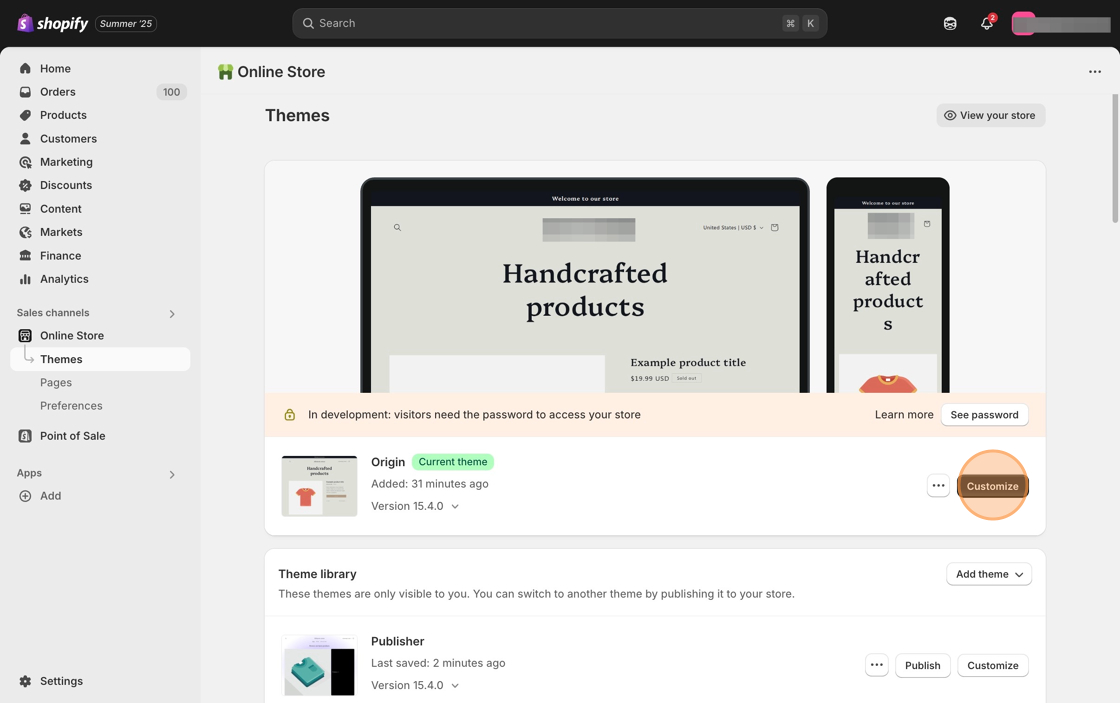
1\. Starting from your Shopify dashboard, click on **Online Store**, and then click on **Themes**.
2\. Click the **Customize** button on the **Origin** theme.
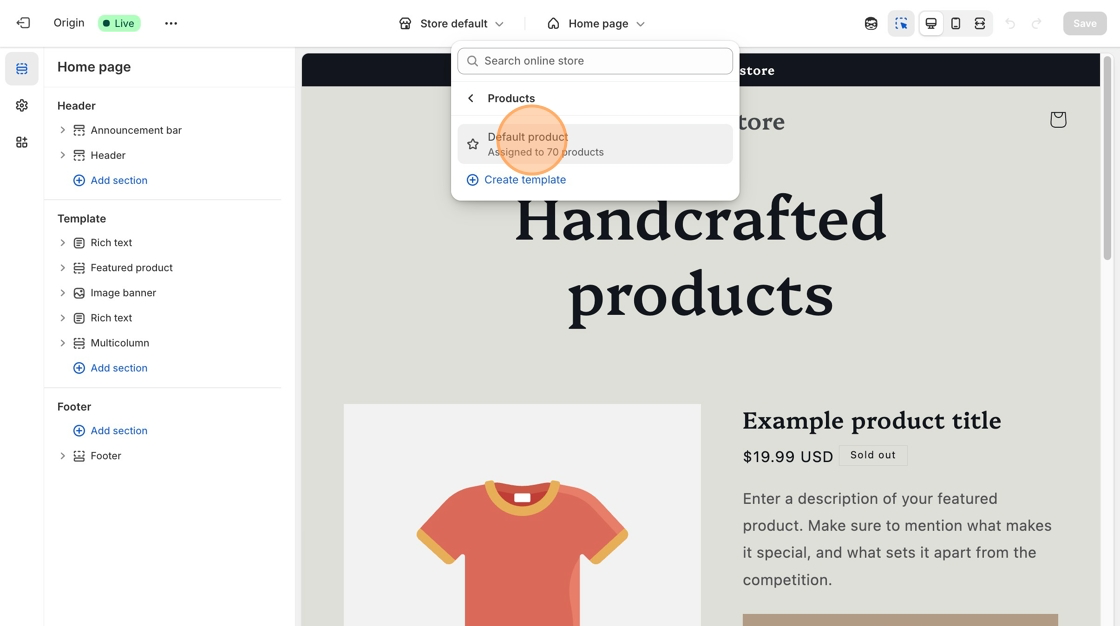
3\. Select **Products** from the dropdown menu in the header and then select a product template. **Default product** is the standard template for Origin theme.
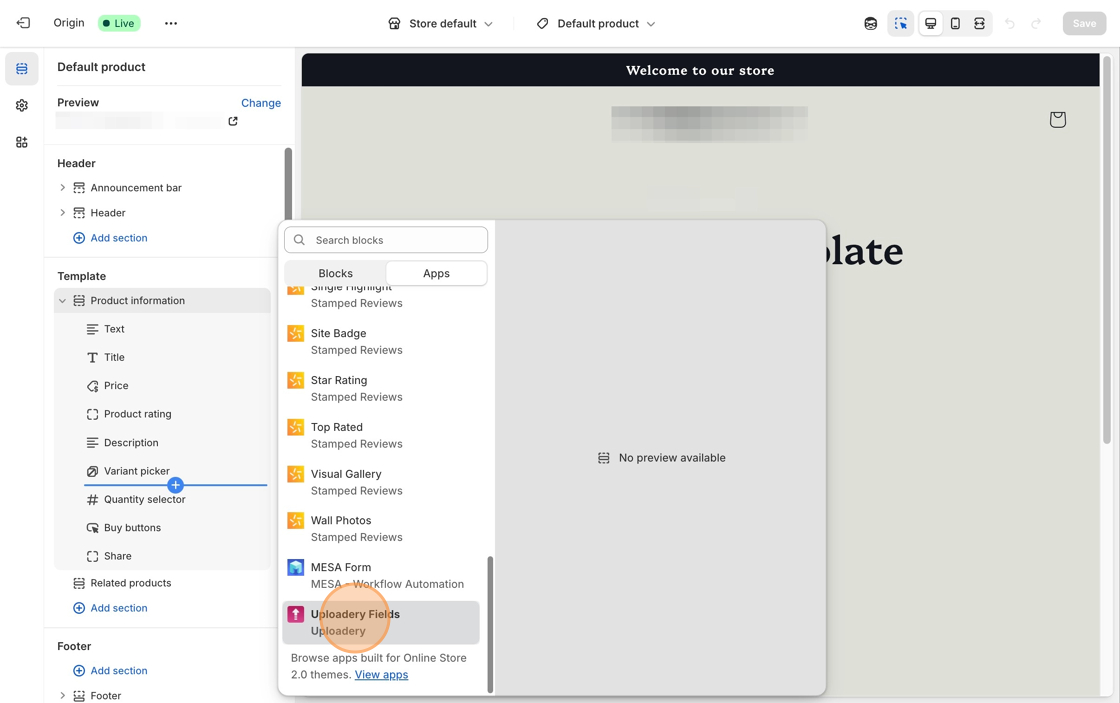
4\. In the **Product Information** section of the left-hand toolbar, click + **Add block** and select the **Uploadery Fields** block.
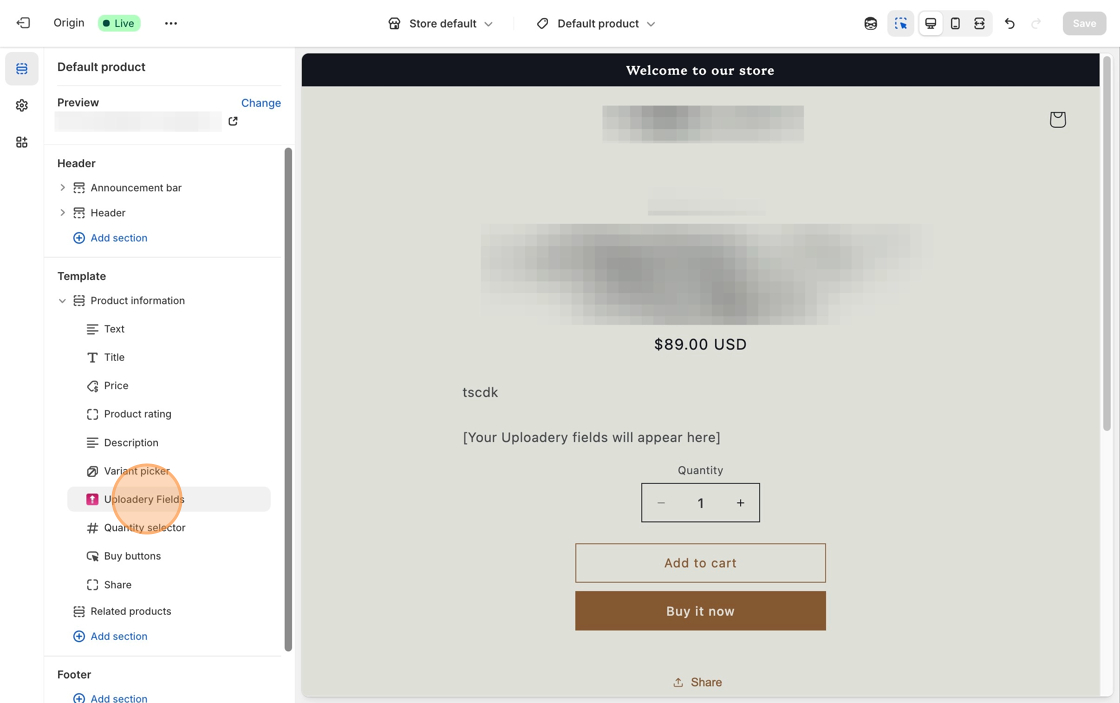
5\. Move the **Uploadery Fields** block above the **Quantity selector** block, or the **Buy buttons** block.
6\. **Save** your changes.
7\. You can now start creating upload fields for your products. Follow the instructions in [this article](https://shoppad.gitbook.io/uploadery/readme/create-and-display-upload-fields) to get started.
***
### What's next?
Add a snippet of code so upload fields can display quicker on your product page: [Decrease Uploadery's load time](https://shoppad.gitbook.io/uploadery/troubleshooting/decrease-uploaderys-load-time).
### Need to adjust the upload link on the cart page?

Shorten the link shown on the cart page by adjusting the upload link: [Display file upload details in the cart page](https://github.com/shoppad/docs-uploadery/blob/master/customize-the-app/display-file-upload-details-in-the-cart-page.md).
### Want to customize the look of your upload fields?

**Here are some great resources to get you started:**
* [Style your upload fields](https://shoppad.gitbook.io/uploadery/customize-the-app/style-file-upload-fields)
* [Add an image preview to the product page](https://shoppad.gitbook.io/uploadery/customize-the-app/add-an-image-preview-to-the-product-page)