> For the complete documentation index, see [llms.txt](https://shoppad.gitbook.io/uploadery/llms.txt). Markdown versions of documentation pages are available by appending `.md` to page URLs; this page is available as [Markdown](https://shoppad.gitbook.io/uploadery/install-uploadery/manually-reposition-uploadery-on-a-specific-theme/venture-theme.md).
# Venture Theme
Turning on the [**Uploadery app embed**](https://shoppad.gitbook.io/uploadery/readme/install-uploadery) is the only thing you need to do to enable Uploadery on a 2.0 theme. Once it's toggled on, your upload fields automatically display above the Add to Cart button on your product pages, no other setup required.
The app embed places your upload fields in the default position, above the Add to Cart button.
Follow the steps below **only if** you want your upload fields to appear at an exact spot instead. This involves the **Uploadery Fields** block to your product template manually.
{% hint style="warning" %}
If you are comfortable with your upload fields automatically appearing above the Add to Cart button on product pages, you **do not** need to follow the manual repositioning guides. You only need to ensure that you have [turned on the app embed](https://shoppad.gitbook.io/uploadery/readme/install-uploadery).
{% endhint %}
Follow the step-by-step instructions below on how to manually reposition Uploadery for your Venture theme.
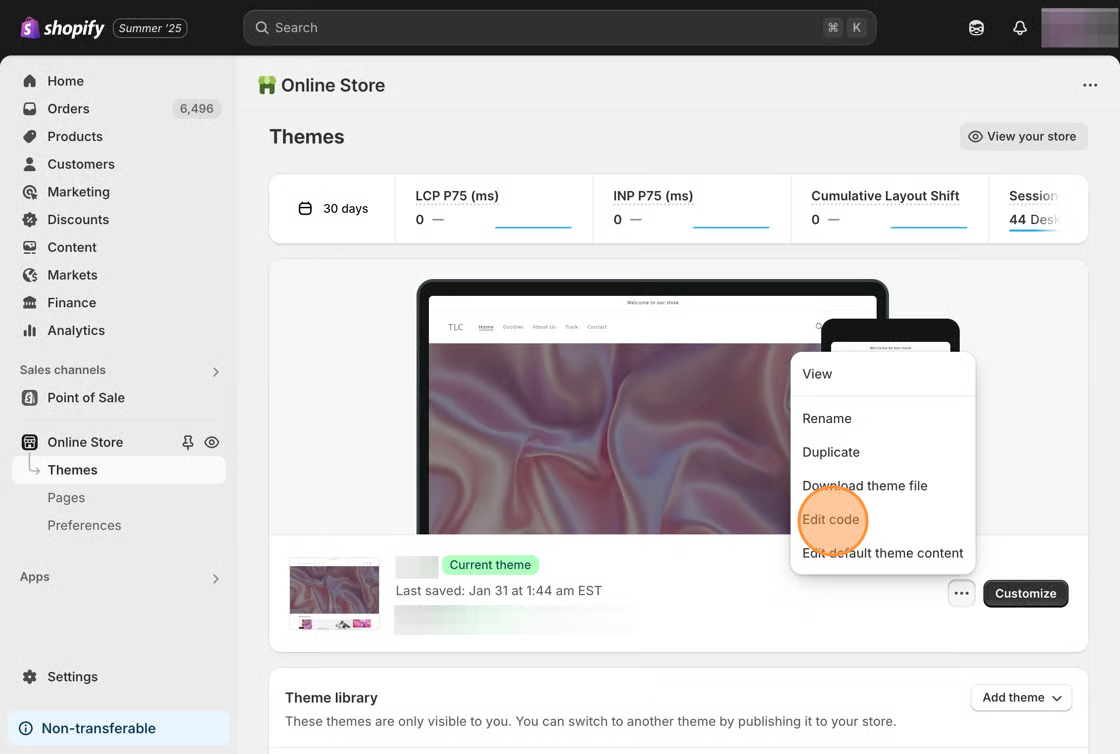
1\. Starting from your Shopify dashboard, click on **Online Store**, and then click on **Themes**.
2\. Click the **Actions** button, then select **Edit code**.
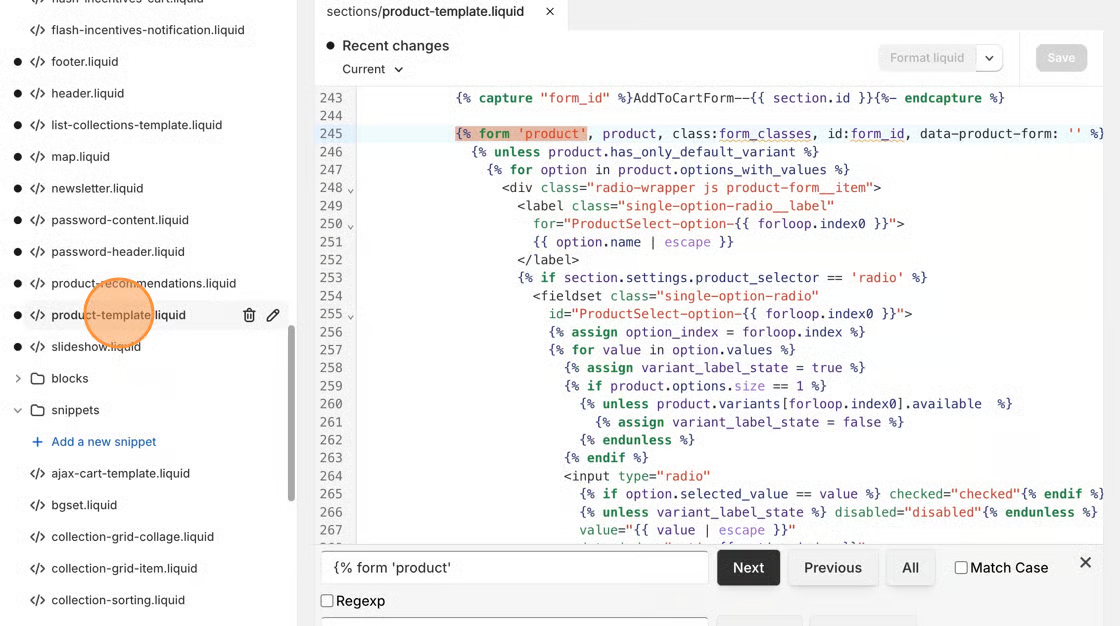
3\. Use the search bar located in the top left of the code editor to search for your **product-template.liquid** file.
4\. In this file, do a search using the keyboard shortcuts (ctrl F or ⌘ F) for the following text.
```
{% form 'product'
```
5\. Within the {% form and {% endform %} tags, locate the **quantity** section that starts with:
**\
6\. Copy the following code snippet.
```
```
7\. Paste the code snippet on a new line right above the quantity section that you found in step 5.
8\. Save changes.
9\. You can now start creating upload fields for your products. Follow the instructions in [this article](/uploadery/readme/create-and-display-upload-fields.md) to get started.
***
### What's next?
Add a snippet of code so upload fields can display quicker on your product page: [Decrease Uploadery's load time](/uploadery/troubleshooting/decrease-uploaderys-load-time.md).
### Need to adjust the upload link on the cart page?

Shorten the link shown on the cart page by adjusting the upload link: [Display file upload details in the cart page](https://github.com/shoppad/docs-uploadery/blob/master/customize-the-app/display-file-upload-details-in-the-cart-page.md).
### Want to customize the look of your upload fields?

**Here are some great resources to get you started:**
* [Style your upload fields](/uploadery/customize-the-app/style-file-upload-fields.md)
* [Add an image preview to the product page](/uploadery/customize-the-app/add-an-image-preview-to-the-product-page.md)