> For the complete documentation index, see [llms.txt](https://shoppad.gitbook.io/uploadery/llms.txt). Markdown versions of documentation pages are available by appending `.md` to page URLs; this page is available as [Markdown](https://shoppad.gitbook.io/uploadery/readme/assigning-upload-fields-excluding-a-few-products.md).
# Assigning Upload Fields: Excluding a few products
If you want an upload field to appear on most of your products but not all of them, product tags are the easiest way to handle it. Instead of assigning products one by one, you tag the ones that should show the upload field and point Uploadery to that tag.
Any product without the tag won't display the upload field.
#### How it Works
1. Tag the products in Shopify that should display the upload field
2. Assign your option set to that tag in Uploadery
If you need to add or remove products later, just update the tag in Shopify. You won't need to touch the option set.
#### **Step 1: Tag Your Products in Shopify**
From your Shopify admin, go to Products.
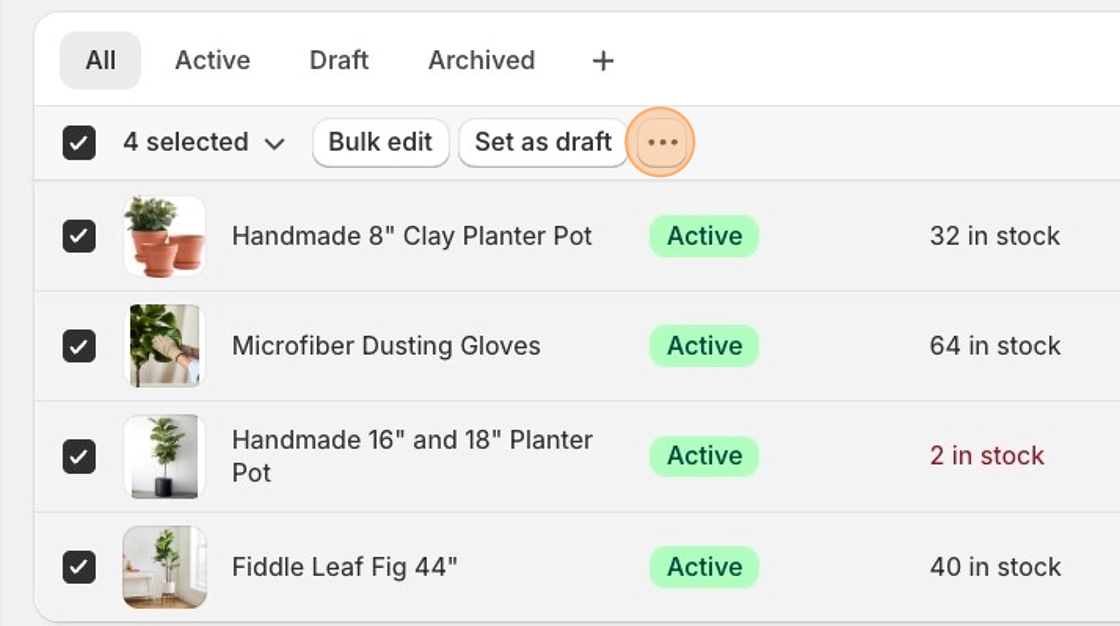
Select the products that should display the upload field. If most of your products need it, you can select all and uncheck the few that should not.
Once your products are selected:
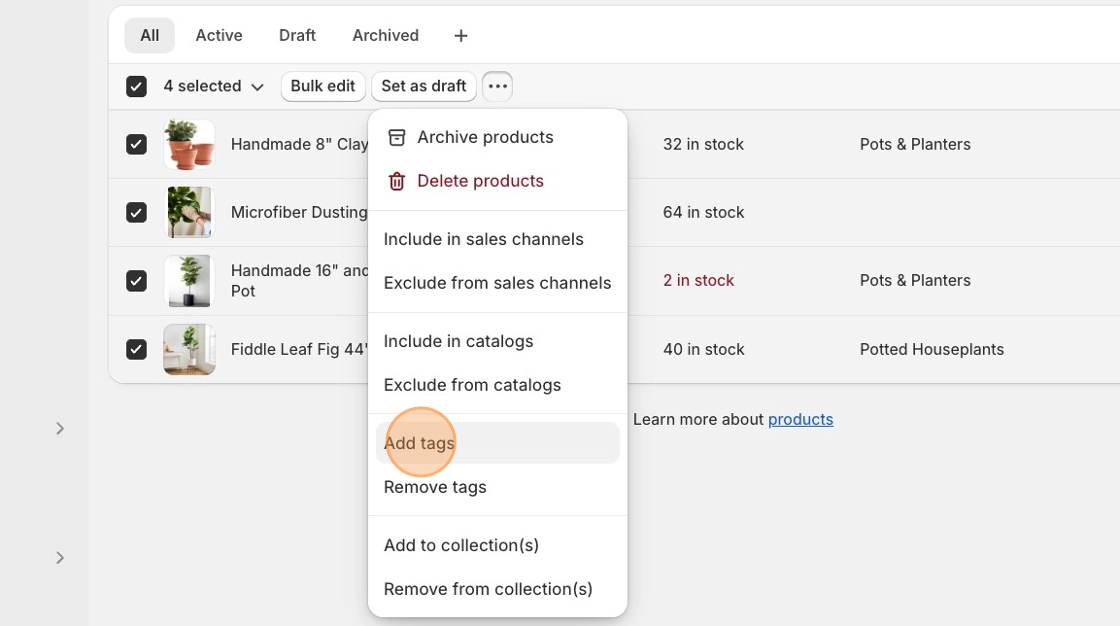
1. Click **More actions**
2. Select **Add tags**
3. Enter a descriptive tag name, like "upload-required"
4. Click **Save**
Shopify will confirm once the tag has been applied. Tags are used internally and won't be visible to customers on your storefront.
#### **Step 2: Assign the Tag in Uploadery**
Open the Uploadery dashboard and go to your option set. In the assignment section at the top:
1. Choose to assign by product tag
2. Enter the tag you just created
Before saving, click Preview matching products to confirm the right products are included.
#### **That's it**
Your upload field will now appear only on products with that tag. If your catalog changes, just add or remove the tag in Shopify, and Uploadery will follow automatically.