> For the complete documentation index, see [llms.txt](https://shoppad.gitbook.io/uploadery/llms.txt). Markdown versions of documentation pages are available by appending `.md` to page URLs; this page is available as [Markdown](https://shoppad.gitbook.io/uploadery/readme/create-and-display-upload-fields.md).
# Create and Display Upload fields
Upload fields are created, managed, and assigned to products on the Uploadery dashboard. This guide walks you through setting up your first one.
Before you start, make sure you've turned on the Uploadery app embed for your theme. If you haven't done that yet, start here: [Turn on Uploadery for Your Theme](https://shoppad.gitbook.io/uploadery/readme/pages/zo3fp8GWqsQ1bUTtM9dn#installing-uploadery-on-a-2.0-theme)
### **What's an Option Set?**
Think of an option set as a package of upload fields. You build it once, assign it to the products that need it, and you're done. Some option sets are simple, just one field asking for a file. Others could display several upload fields on the product.
The main benefit is reuse. If ten products need the same upload field, one option set covers all of them.
***
{% hint style="info" %}
**Note:** When you open the dashboard, Uploadery will sync your product catalog in the background. You'll see a "Catalog Sync Complete" message when it's done. You don't need to wait for it to start building your option set.
{% endhint %}
#### **Step 1: Create an Option Set**
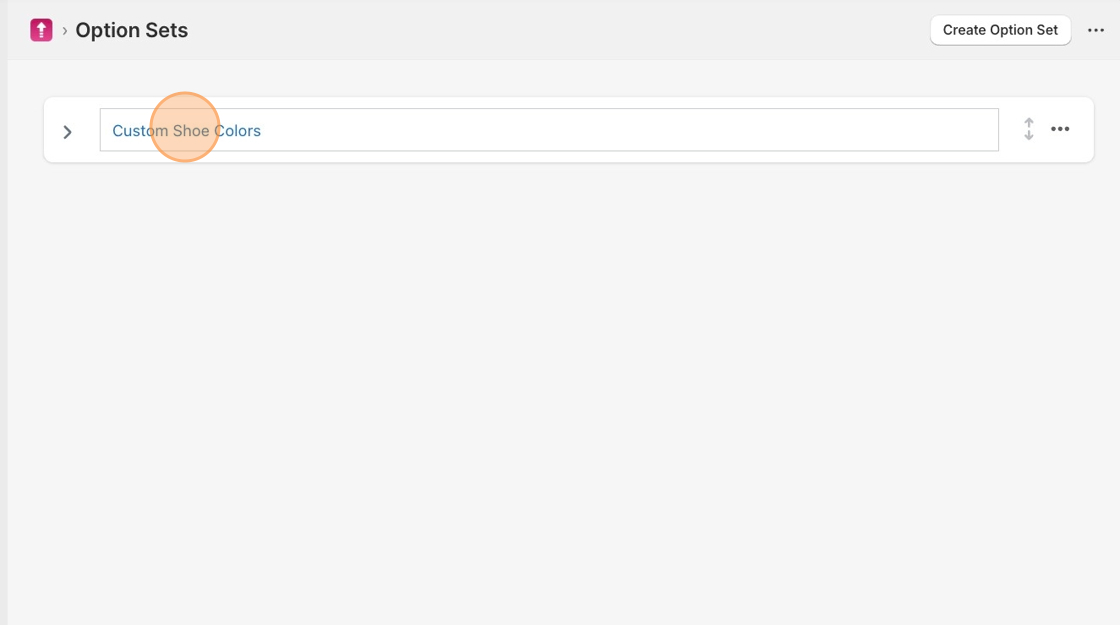
From the Uploadery dashboard, click Create Option Set.
You can rename it right away by clicking on the Option Set 1 text. \
\
Give it a name that makes sense for the product you're setting it up for, like "Custom Artwork Upload" or "Personalization File." In this example, we have named the option set "Custom Shoe Colors."
#### Step 2: Set Up Your Upload Field
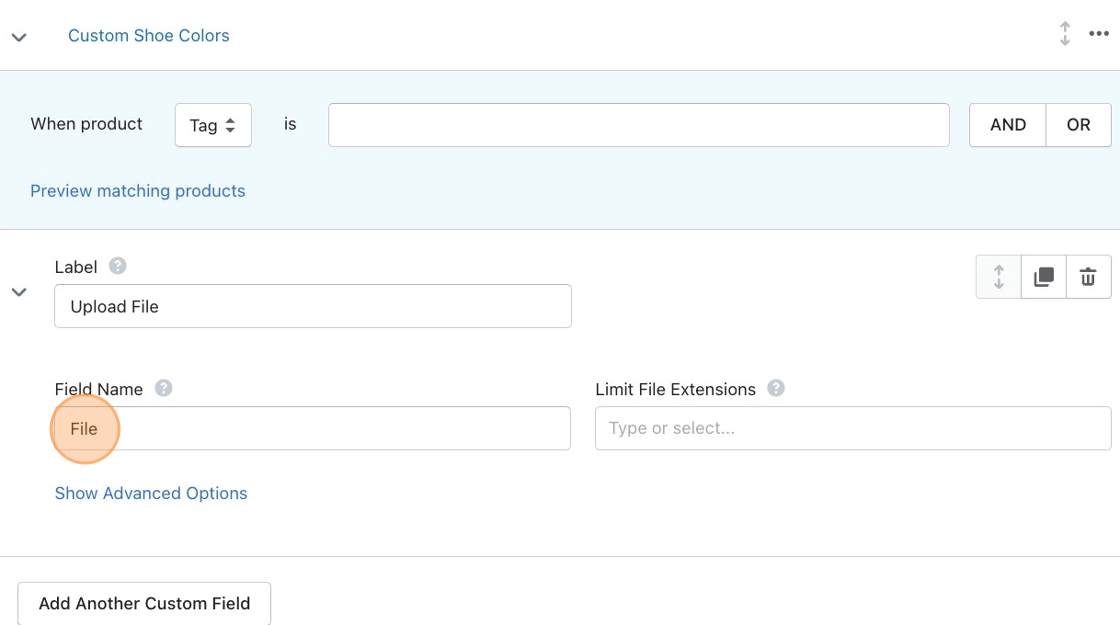
Click the gray arrow or the Label field to expand the configuration panel.
There are two fields to fill in first:
**Label** -- This is the heading customers see above the upload field on your product page. Keep it clear and descriptive, like "Upload Your Artwork" or "Upload Your Photo."
**Field Name** -- This is the label that appears at checkout and in the order details. It should be unique so you can easily identify which upload belongs to which field when reviewing orders.
{% hint style="info" %}
Hovering over the ⓘ icon next to any field on the dashboard will bring up information detailing what the field is used for.
{% endhint %}
#### **Step 3: Choose Accepted File Types**
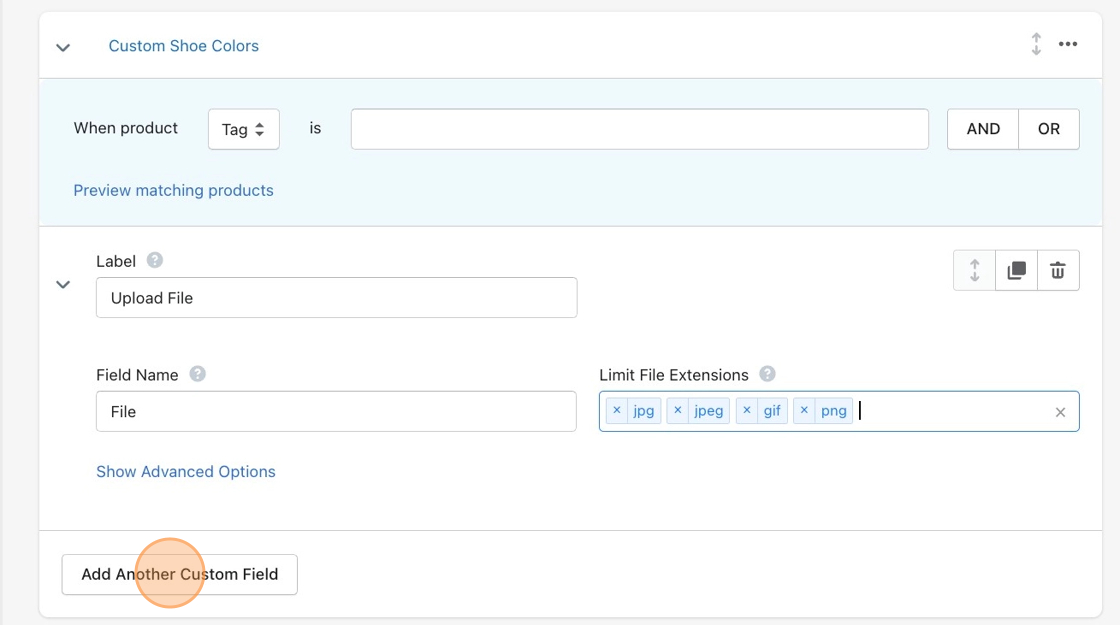
Under file formats, you can choose what types of files customers are allowed to upload. Leaving it blank allows all file types.
If you want to limit it, you can select from preset categories: Image, Video, Audio, or Document. Selecting one will automatically include all file extensions in that category.
#### **Step 4: Add More Fields (Optional)**
If your product needs more than one upload field, click Add Another Custom Field to add additional fields to the same option set.
#### **Step 5: Set Advanced Options (Optional)**
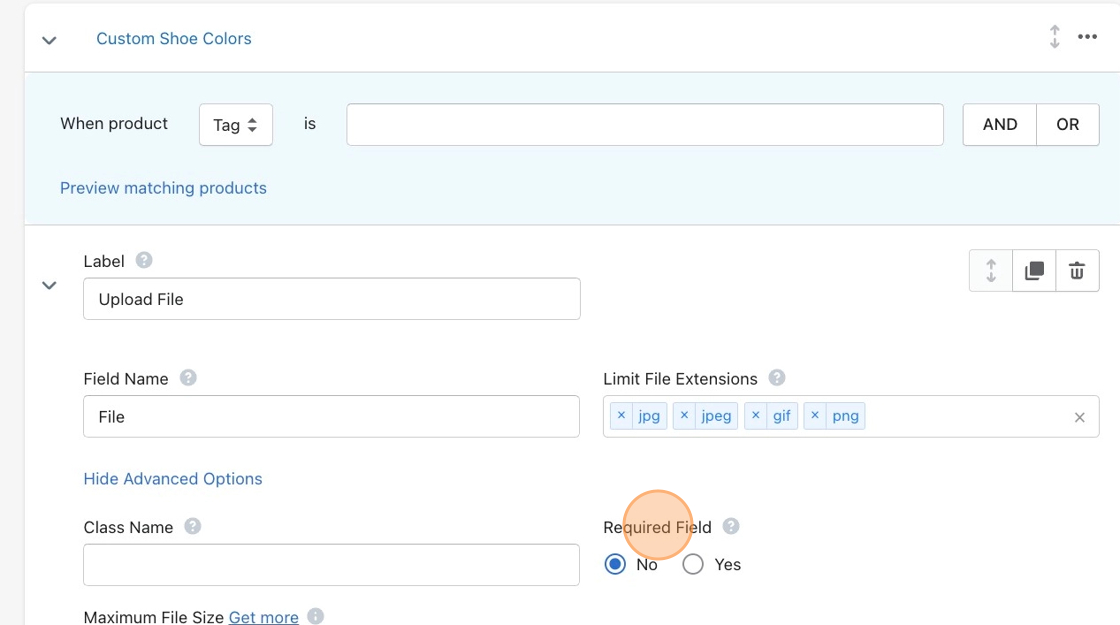
Click Show Advanced Options if you want more control over the field. You can skip this on your first setup and come back to it later.
Here's what each setting does:
* **Class Name** -- Only needed if you plan to use custom CSS to style the upload field. Leave it blank otherwise.
* **Maximum File Size** -- Sets a limit on how large a customer's uploaded file can be. Click Get more if you need a higher limit.
* **Required Field** -- Set to **Yes** if customers must upload a file before adding the product to their cart. Set to No to make it optional.
* **In-Browser Image Editor** — this lets your customers crop and rotate images before submitting. You can also choose the output file format.
**Image Requirements** -- Lets you set specific aspect ratios or minimum and maximum dimensions for uploaded images. Uploadery supports square (1:1), portrait (4:5), landscape (16:9), and other aspect ratio-based crop areas.
It does not include a circular crop mask. The image editor will always produce a rectangular file.
### **Step 6: Assign the Option Set to Products**
Now that your fields are set up, it's time to choose which products they'll appear on. At the top of the option set, you'll see the assignment section. This is where you define your assignment rule.
For help with assignment rules, see: [Assigning Upload Fields to Products.](/uploadery/readme/assigning-upload-fields-excluding-a-few-products.md)
#### **Step 7: Save**
Click **Save.** Your upload fields should appear on your storefront within a few minutes.
If the fields aren't showing up after a few minutes, the app embed may not be turned on for your theme yet. Follow this guide to get that sorted: [Turn on Uploadery for Your Theme](https://shoppad.gitbook.io/uploadery/readme/pages/zo3fp8GWqsQ1bUTtM9dn#installing-uploadery-on-a-2.0-theme)
#### **What's Next**
Once your first upload field is live, you're ready to start receiving files from customers. When an order comes in, you can download the uploaded file from the order details in your Shopify admin or directly from the Uploadery dashboard.