> For the complete documentation index, see [llms.txt](https://shoppad.gitbook.io/uploadery/llms.txt). Markdown versions of documentation pages are available by appending `.md` to page URLs; this page is available as [Markdown](https://shoppad.gitbook.io/uploadery/install-uploadery.md).
# Turn on Uploadery for Your Theme
Before your upload fields can appear on your storefront, you'll need to turn on the **Uploadery app embed** in your theme.
This only needs to be completed once for each Shopify theme you use.
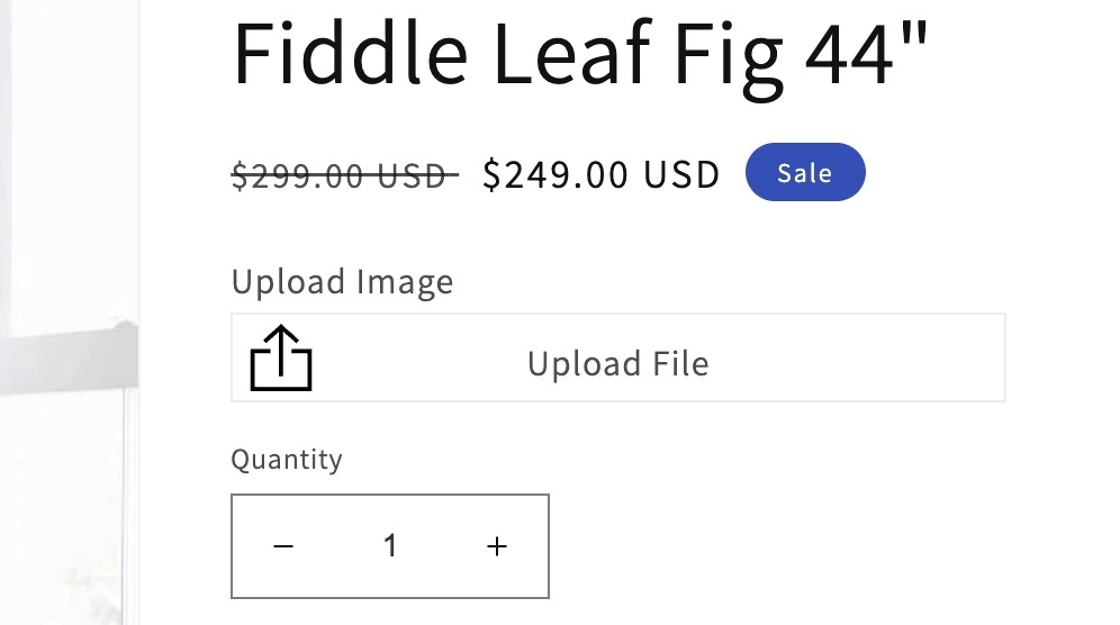
Once enabled, Uploadery automatically displays your upload fields above the Add to Cart button on your product pages. No manual placement required.
{% hint style="info" %}
Want your upload fields to appear at an exact spot on the page instead of above the Add to Cart button? See [**Optional: Manually Position Your Upload Fields Within a Product Template**](https://shoppad.gitbook.io/uploadery/readme/install-uploadery#optional-manually-position-your-upload-fields-within-a-product-template) below.
{% endhint %}
***
## Enable Uploadery by Turning on the App Embed
### Step 1: Open the Theme Editor
From your Shopify admin:
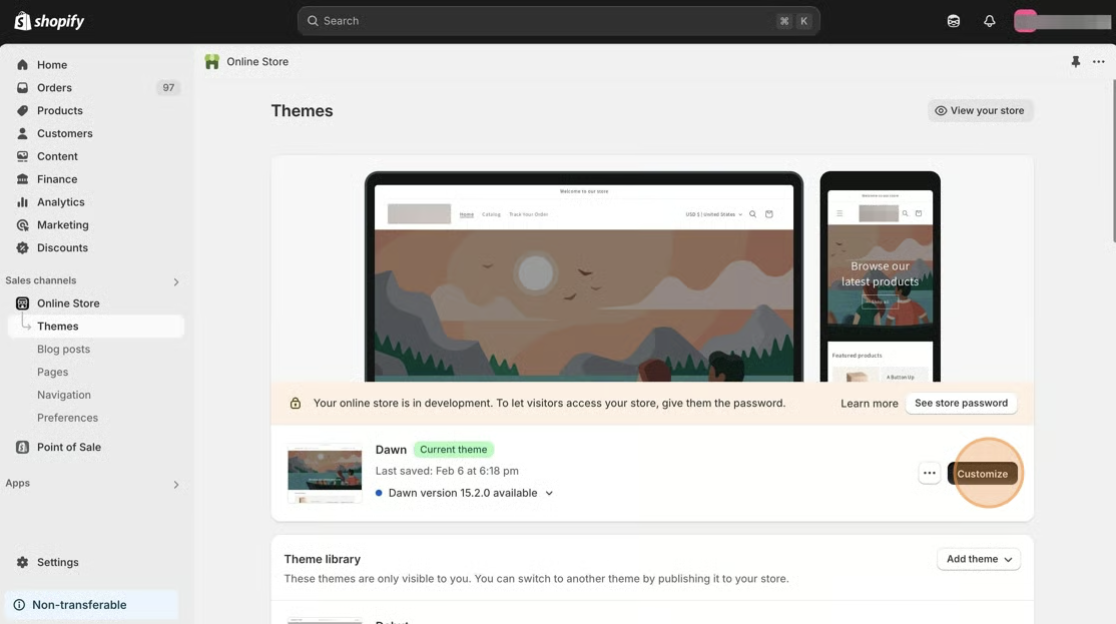
* Go to **Online Store > Themes**.
* Click **Customize** next to your current theme.
### Step 2: Turn on the Uploadery App Embed
In the header of the theme editor:
* Click the **App embeds** icon.
* Find **Uploadery** in the list.
* Toggle it on.
### Step 3: Save Your Changes
Click **Save** in the upper-right corner.
Once saved, your upload fields will automatically appear above the Add to Cart button on your product pages.
## Optional: Manually Position Your Upload Fields Within a Product Template
The app embed places your upload fields in the default position, above the Add to Cart button.
Follow the steps below **only if** you want your upload fields to appear at an exact spot instead. This involves the **Uploadery Fields** block to your product template manually.
#### Step 1: Open the Theme Editor
From your Shopify admin:
* Go to **Online Store > Themes**.
* Click **Customize** next to your current theme.
#### Step 2: Open Your Product Template
At the top of the theme editor:
* Click the page selector dropdown.
* Select **Products**.
* Choose your product template.
The product template controls how your product pages look. Most merchants use the **Default product** template.
#### Step 3: Add the Uploadery Fields Block
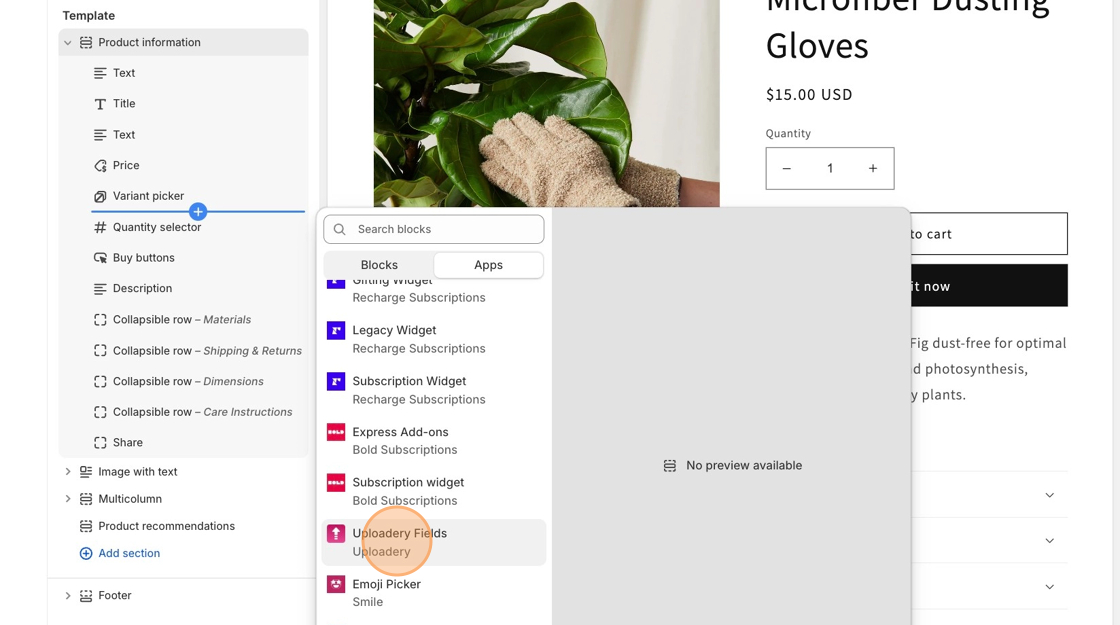
In the left sidebar:
* Locate the section that contains your product information, such as the title, price, variants, and **Add to Cart** button.
* Click **Add block**.
* Open the **Apps** tab.
* Select **Uploadery Fields**.
**Note:** Only add one **Uploadery Fields** block to your product template. It will automatically display every Option Set assigned to that product.
#### Step 4: Save Your Changes
Click **Save** in the upper-right corner.
Once you've saved your changes, any Option Sets you create and assign in Uploadery will automatically appear on your product pages.
You can now begin creating upload fields.
## What's Next?
### Need to adjust the upload link on the cart page?
Shorten the link shown on the cart page by adjusting the upload link: [Display file upload details in the cart page](/uploadery/customize-the-app/display-a-short-link-on-the-cart.md).
### Want to customize the look of your upload fields?
**Here are some other great resources to get you started:**
* [Style your upload fields](/uploadery/customize-the-app/style-file-upload-fields.md)
* [Add an image preview to the product page](/uploadery/customize-the-app/add-an-image-preview-to-the-product-page.md)