> For the complete documentation index, see [llms.txt](https://shoppad.gitbook.io/uploadery/llms.txt). Markdown versions of documentation pages are available by appending `.md` to page URLs; this page is available as [Markdown](https://shoppad.gitbook.io/uploadery/readme/upload-multiple-images.md).
# Upload multiple images
Uploadery allows you to add an unlimited number of upload fields to any of your products.
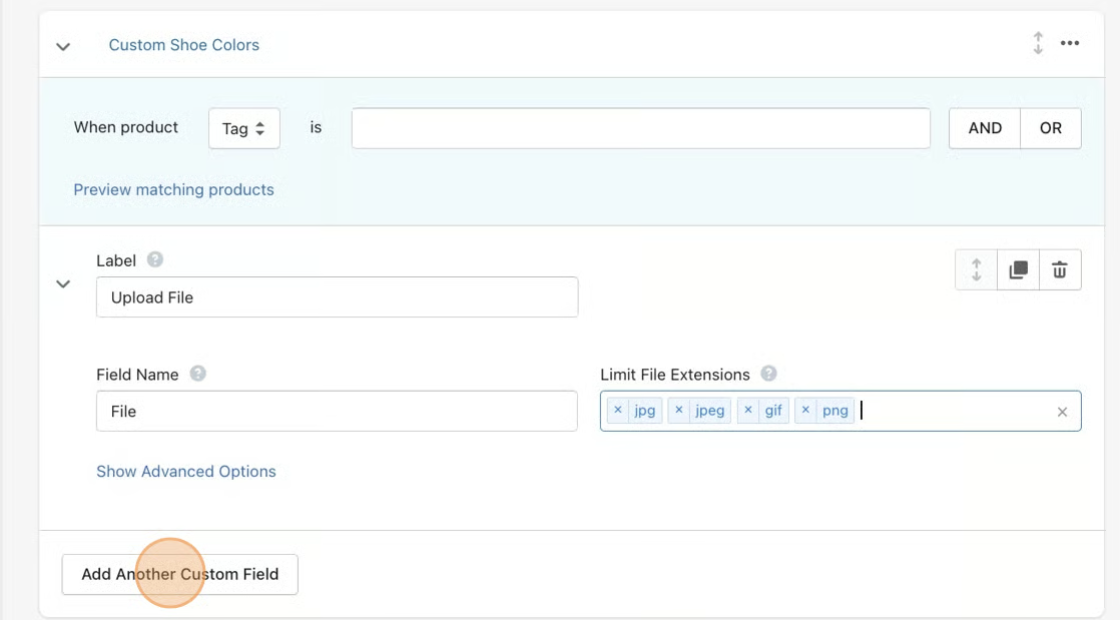
You can click on the **Add Another Custom Field** button to add another upload field to the product. Click here for a refresher on how to [create upload fields](/uploadery/readme/create-and-display-upload-fields.md).
However, the easiest way to make multiples of the same upload field is to use the **Duplicate** button for your upload field within the option set.
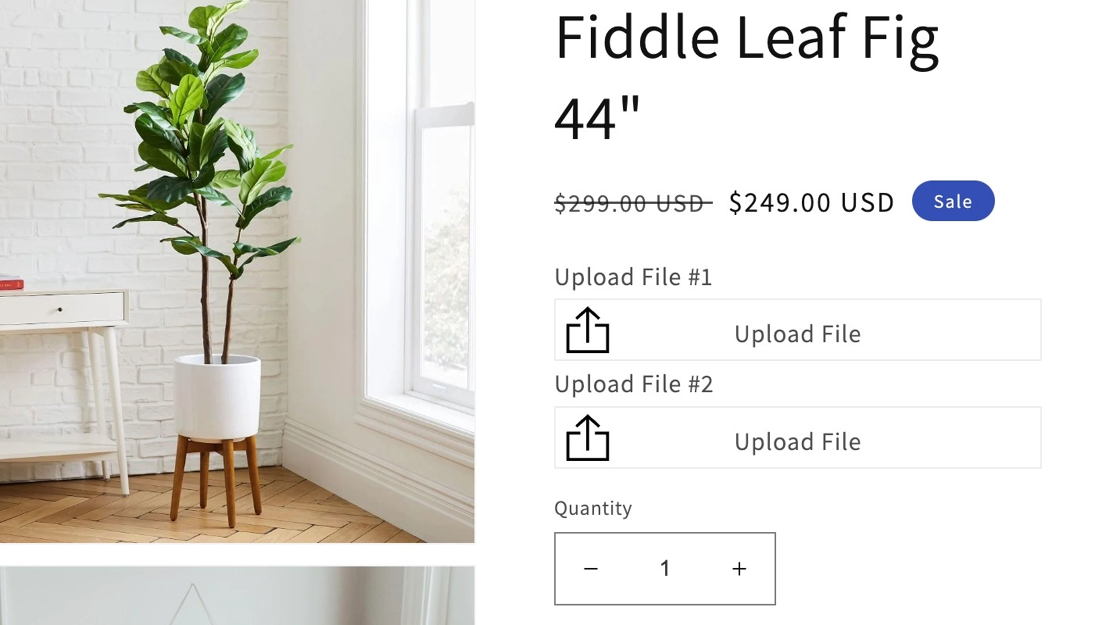
Don't forget to **save** your changes. Then, your product page will look like this:
{% hint style="info" %}
**Note:** Don't forget to change the upload field's **Field Name**. This will be the text that appears at the cart summary screen, checkout, and the order details page, showing the file details.
{% endhint %}
Lastly, you will want to make sure that your field names are all unique values to prevent any issues.